7.3 Journal Entry
- A Journal Entry is an entry made in the general ledger and it indicates the affected accounts.
- A Journal Entry is a multi purpose transaction where the debit and credit accounts can be selected.
- All types of accounting entries other than Sales and Purchase transactions are made using the Journal Entry. A Journal Entry is a standard accounting transaction that affects multiple Accounts and the sum of debits is equal to the sum of credits. A Journal Entry Impacts the main ledger.
- Journal Entries can be used for entering expenses, opening entries, contra entries, bank payments, excise entries, etc. For example, booking running expenses, direct expenses like petrol/transport, sundry expenses, adjustment entries, and adjusting invoice amount.
- To access the Journal Entry list, go to: Home > Accounting > General Ledger > Journal Entry
1. How to create a Journal Entry
- Go to the Journal Entry list and click on New.
- The default Entry Type will be Journal Entry. This is a general-purpose entry type. (Visit Section 3 to learn more about entry types.)
- Change the Posting Date, if required.
- Expand the table and select the Account from which the amount will be debited.
- These details can also be added using a Journal Entry Template through the From Template field.
- Select the Party Type and Party if the entry is related to a Debtor.
- Add another row for the credited amount.
- Ensure that the total debit and total credit amounts are equal.
- Click Save and then Submit.
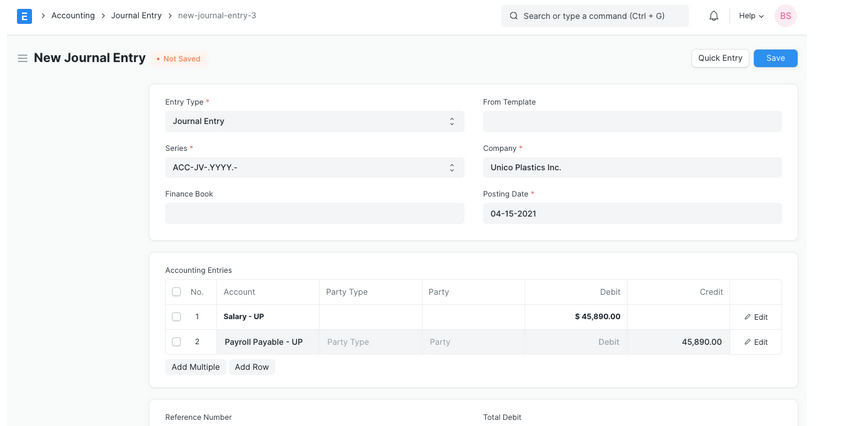
- Finance Book: You can post this entry to a specific Finance Book. On leaving this field blank, this Journal Entry will show up in all Finance Books. This field will only be visible if 'Enable Finance Books' under the Fixed Asset Defaults section of the Company master is checked.
1.1 Quick Entry
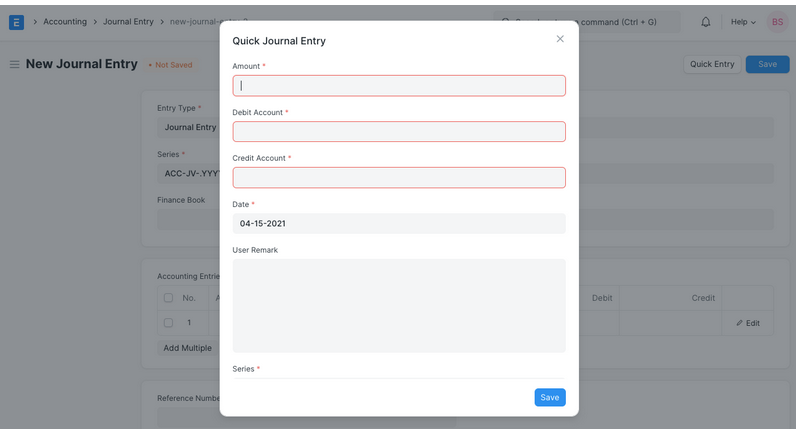
- When creating a Journal Entry, a Quick Entry button can be seen on the top right. This makes creating the Journal Entry a bit easier. Enter the amount, select the accounts, add a remark. This will populate the 'Accounting Entries' table with the selected details.
2. Features
2.1 Accounting Entries
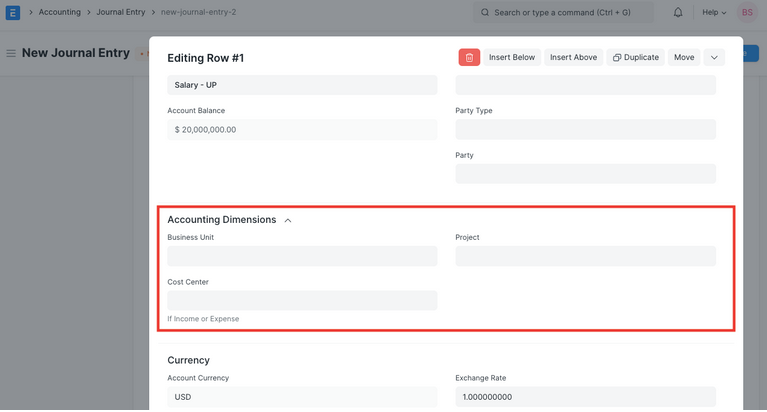
- Accounting Dimensions : A Project or Cost Center can be linked here to track costing separately.
- Bank Account No: If you've added a Bank Account, the number associated with that bank account will be fetched.
- Reference Type: If this Accounting Entry is associated with another transaction, it can be referenced here. Select the Reference Type and select the specific document. For example, if you're creating a Journal Entry against a specific Sales Invoice. Link this Journal Entry to the invoice. The “outstanding” amount of that invoice will be affected.
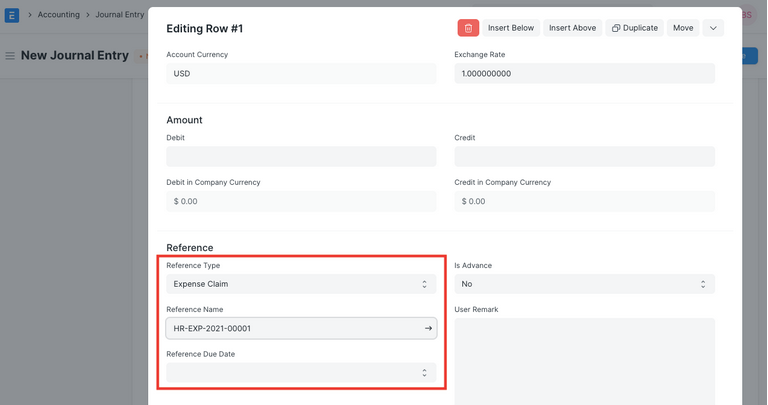
Reference: Documents selectable under Reference Type include: Sales Invoice , Purchase Invoice , Journal Entry, Sales Order , Purchase Order , Expense Claim , Asset , Loan , Payroll Entry , Employee Advance ,Exchange Rate Revaluation , Invoice Discounting
Is Advance : Set to 'Yes' if this is an advance payment linked to Reference Name.
- User Remark : Additional remarks about the entry.
2.2 Reverse Journal Entry
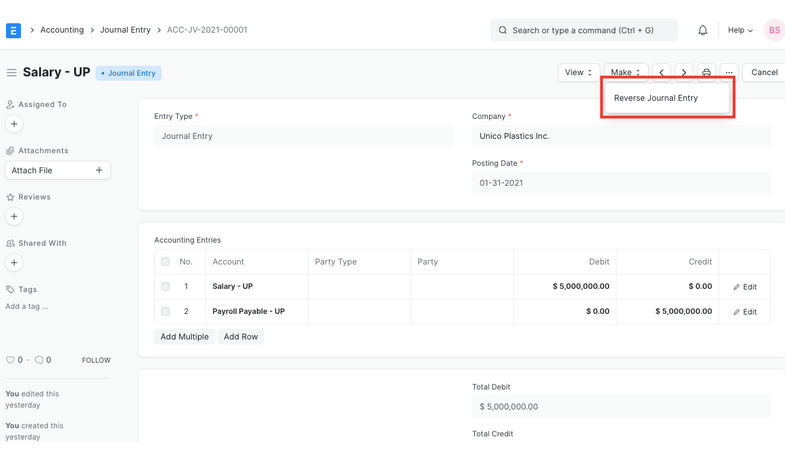
- Clicking Reverse Journal Entry on a submitted Journal Entry creates a new Journal Entry by reversing debit and credit amounts.
2.3 Difference Entry
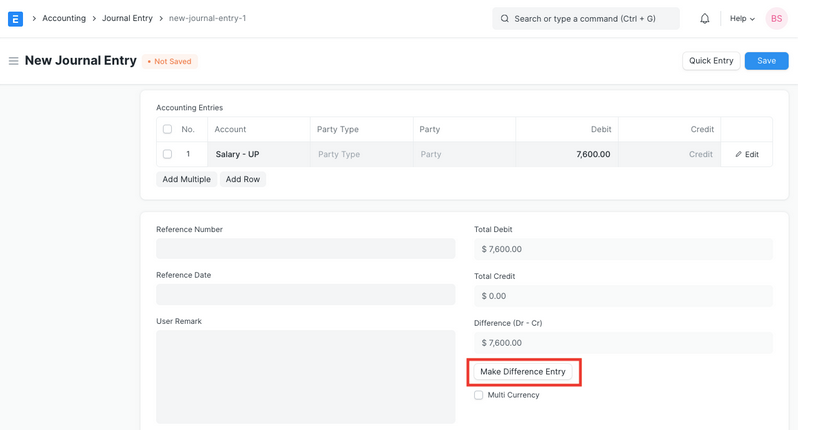
- The Difference is the remaining amount after summing all debits and credits. To submit the Journal Entry, this should be zero. Click Make Difference Entry to automatically add a row to adjust the total.
2.4 Referencing
- You can enter Reference Number and Reference Date manually. Additional fields for offline bills include: Bill No , Bill Date , Due Date
2.5 Multi-Currency Entries
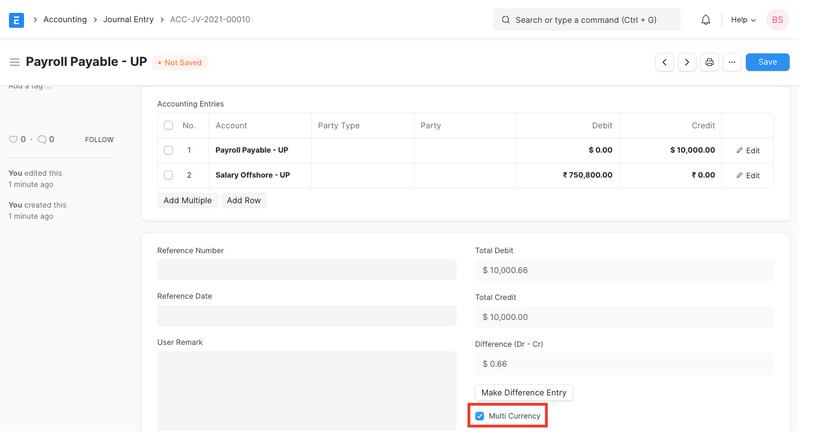
- Tick the Multi Currency checkbox to use accounts in different currencies. This fetches the Exchange Rate automatically.
2.6 Journal Entry Template
- Select a template in From Template to fetch : Entry Type , Company, Series, Accounts in Accounting Entries , Is Opening
2.7 Print Settings
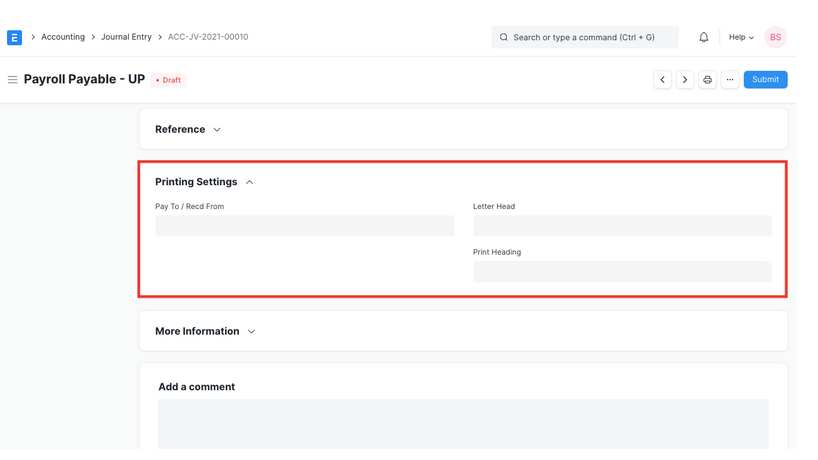
- Pay To / Recd From : Appears in Sales Invoice and cheque printing.
- Letterhead : Print Journal Entry on company letterhead.
- Print Headings : Select a custom title for printing.
2.8 More Information
- Mode of Payment : Wire Transfer, Bank Draft, Credit Card, Cheque, or Cash.
- Is Opening : Set to 'Yes' for Opening Entries.
- From Template : Selecting a template clears the Accounting Entries table first.
3. Journal Entry Types
3.1 Journal Entry
- General-purpose entry. Examples :
- Expenses (non-accruing) :
- Debit : Expense Account (e.g., Telephone Expense)
- Credit : Bank or Cash Account
- Crediting Salaries :
- Debit : Salary components
- Credit : Bank account
3.2 Inter Company Journal Entry
- Used for transactions between companies in the same group.
3.3 Bank Entry
- Payment via a Bank Account.
3.4 Cash Entry
- Payment via Cash Account.
3.5 Credit Card Entry
- Used for credit card payments.
3.6 Debit Note
- Issued to a supplier for returned goods.
- Debit : Supplier Account
- Credit : Purchase Return Account
3.7 Credit Note
- Issued to a customer for returned goods.
- Debit : Sales Return Account
- Credit : Customer Account
3.8 Contra Entry
- Transaction within same company : Cash to Cash , Bank to Bank , Cash to Bank , Bank to Cash
3.9 Excise Entry
- On purchase:
- Debit : Purchase Account, Excise Duty Account
- Credit : Supplier Account
- On sale:
- Debit : Customer Account
- Credit : Sales Account, Excise Duty Account
3.10 Write Offs / Bad Debts
- Debit : Bad Debts Written Off
- Credit : Customer
3.11 Opening Entry
- Used when migrating from another software. Select type to fetch Balance Sheet accounts.
3.12 Depreciation
- Distribute asset value over years:
- Debit : Depreciation (Expense)
- Credit : Asset
3.13 Exchange Rate Revaluation
- For accounts in multiple currencies, create a Journal Entry from Exchange Rate Revaluation form.