5.3 Stock Entry (Material Transfer)
*** When required stock is already available in the warehouse.**
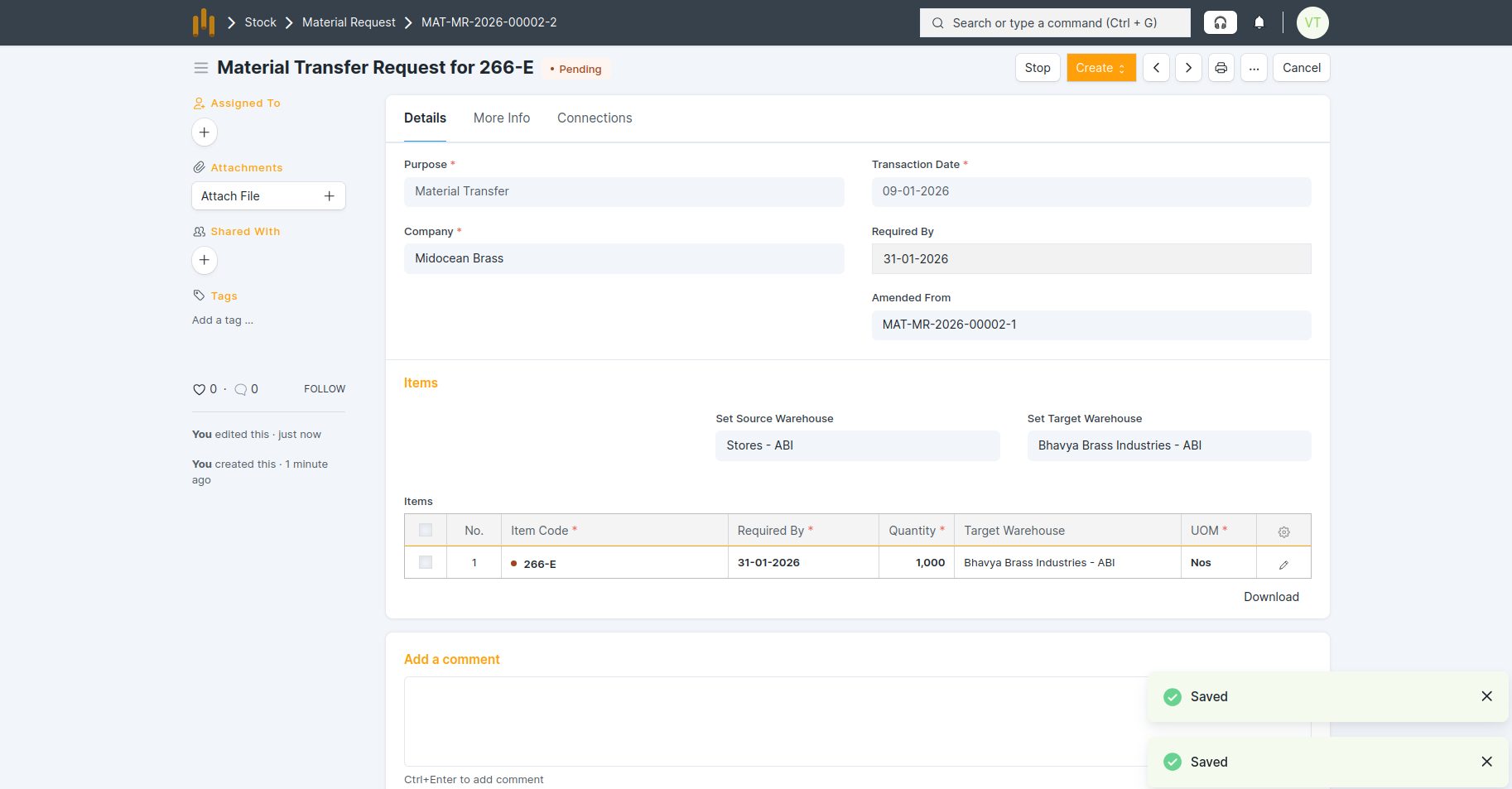
Step 1: Create Material Request
- Go to Material Request.
- Select Purpose = Material Transfer.
- Add Required By Date.
- Select Source Warehouse and Target Warehouse.
- Add Item and Quantity.
- Save and Submit the form.
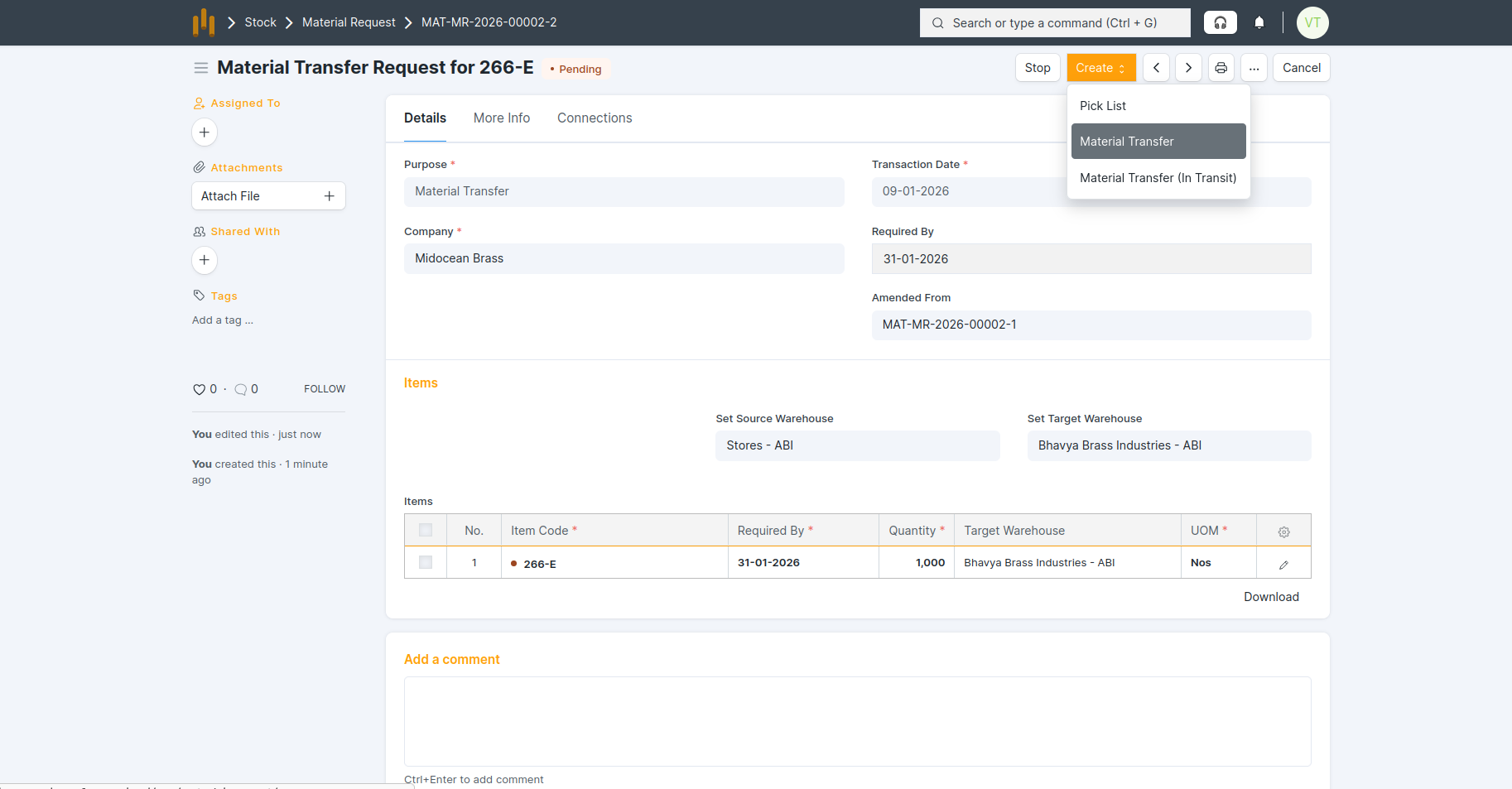
Step 2: Create Stock Entry from Material Request
- click Material Transfer button
Step 3: Verify Stock Entry Details
- You will be redirected to the Stock Entry form.
- The following details are automatically fetched from the Material Request:
- Stock Entry Type = Material Transfer
- Posting Date and Time
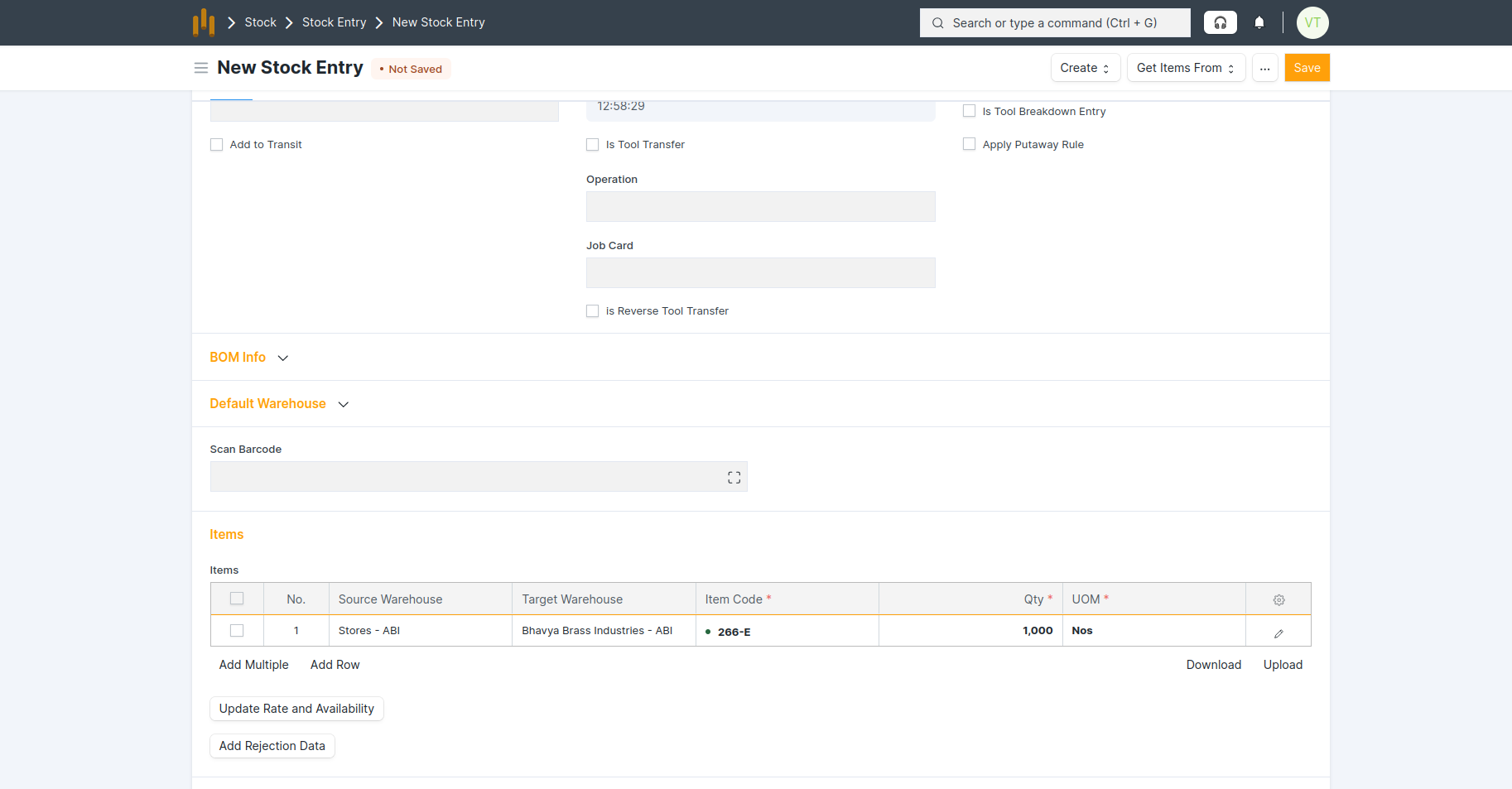
- Items and Quantity
- Source Warehouse and Target Warehouse
- UOM (Unit of Measure)
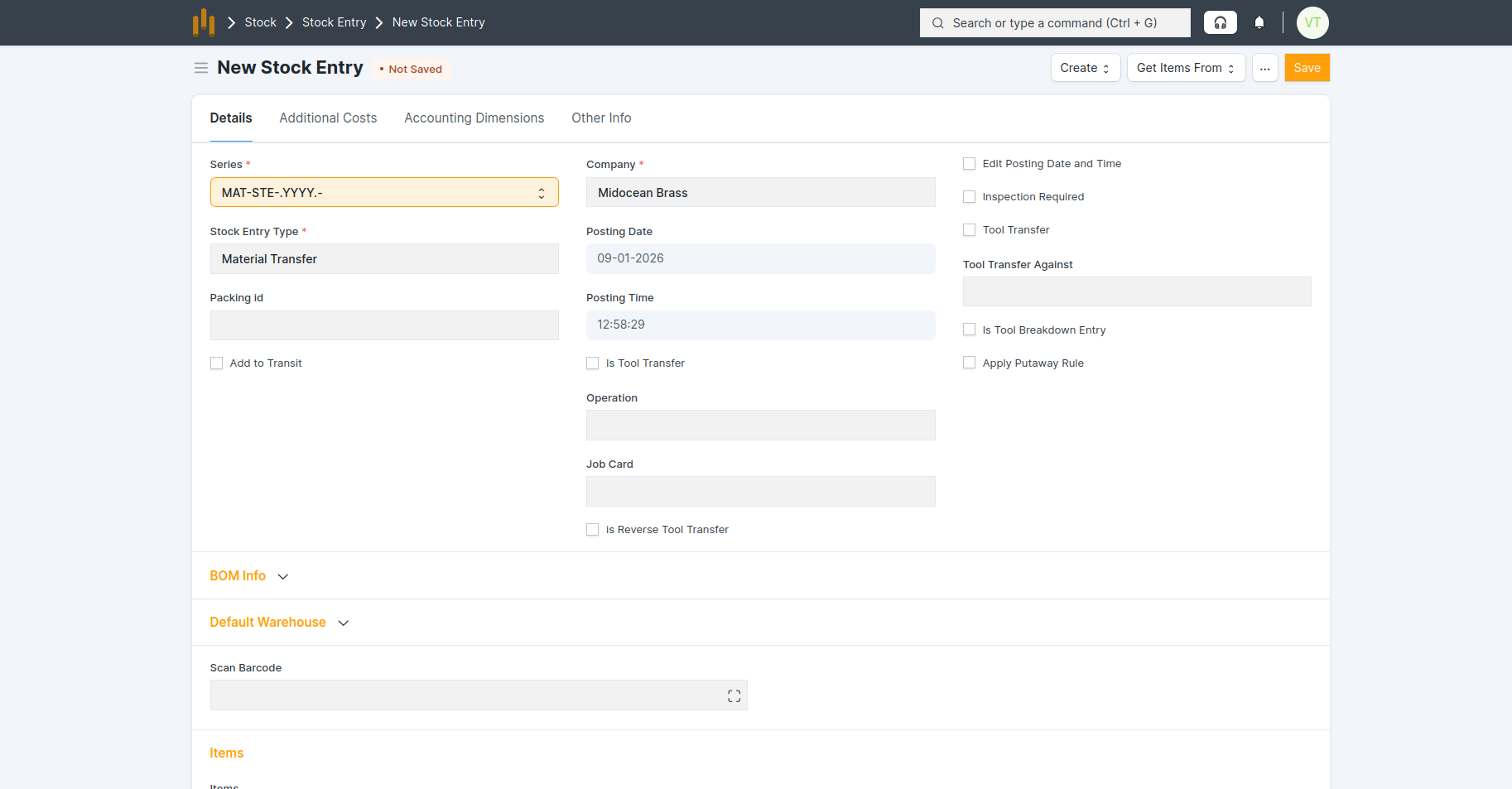
Step 4: Save and Submit Stock Entry
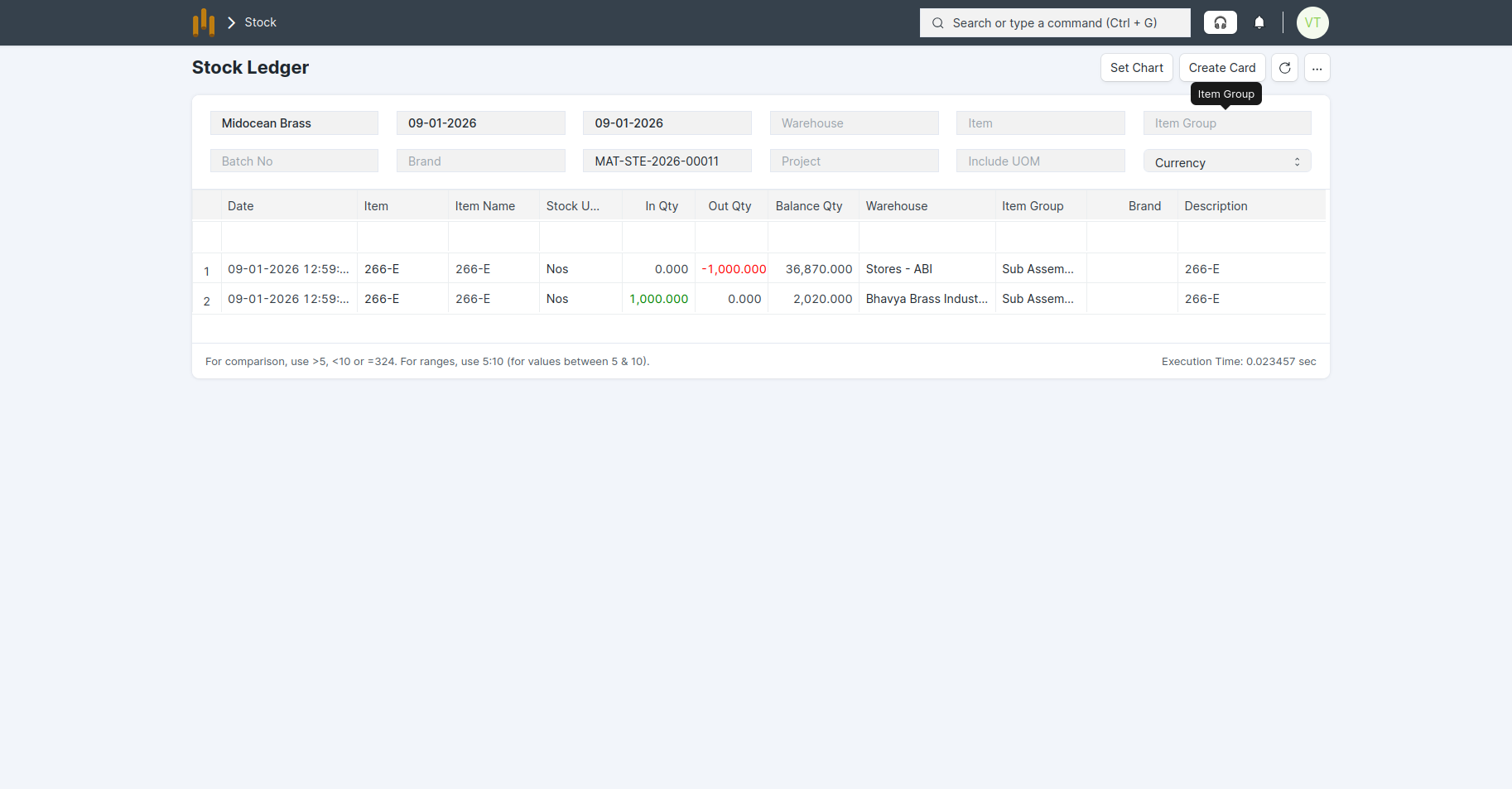
Step 5: Check Stock in Target Warehouse
- Click View Stock Ledger to confirm that the stock has been transferred to the target warehouse.
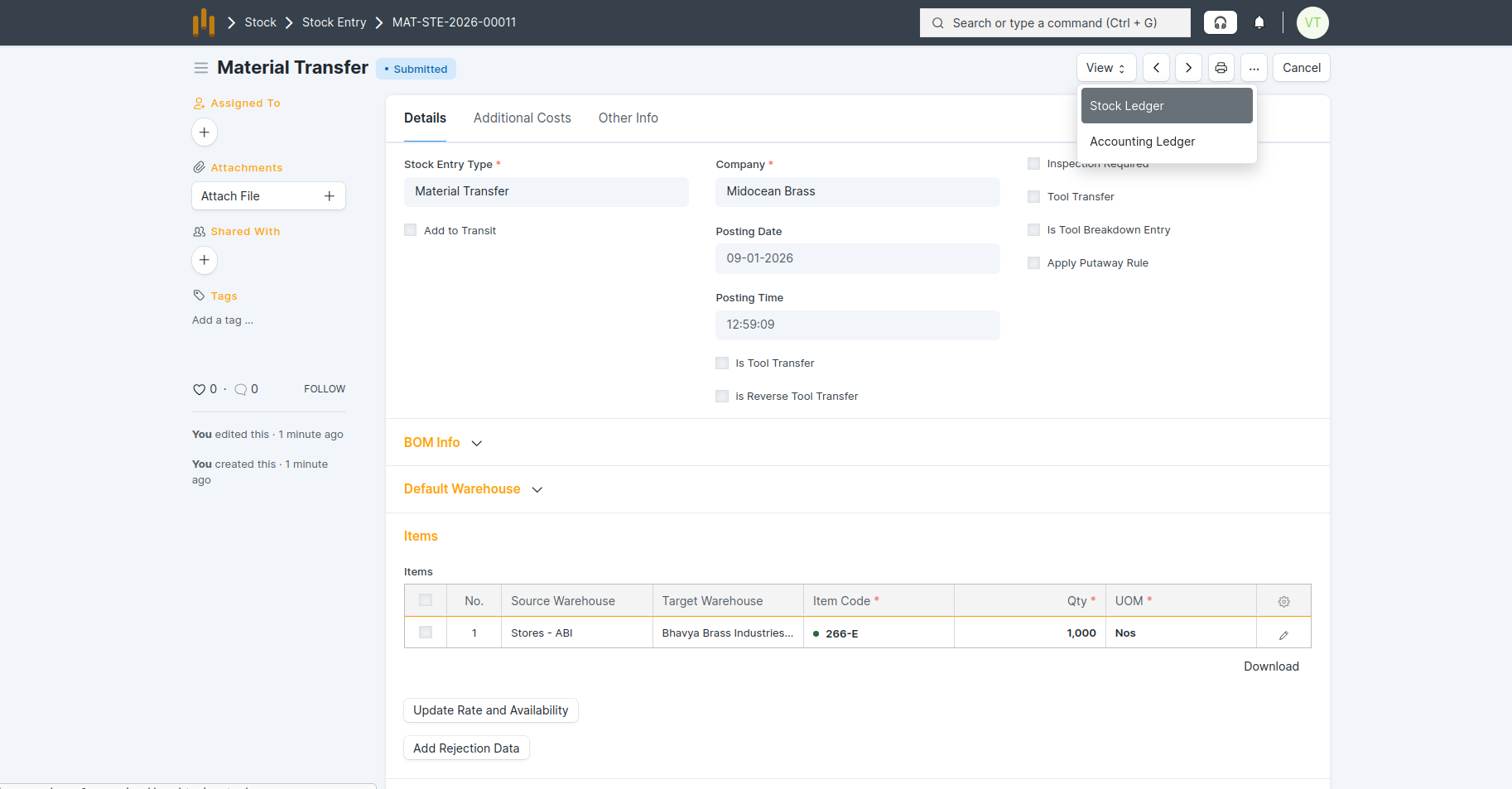
Step 6: Verify Stock Update
- The stock in the Target Warehouse is now updated.
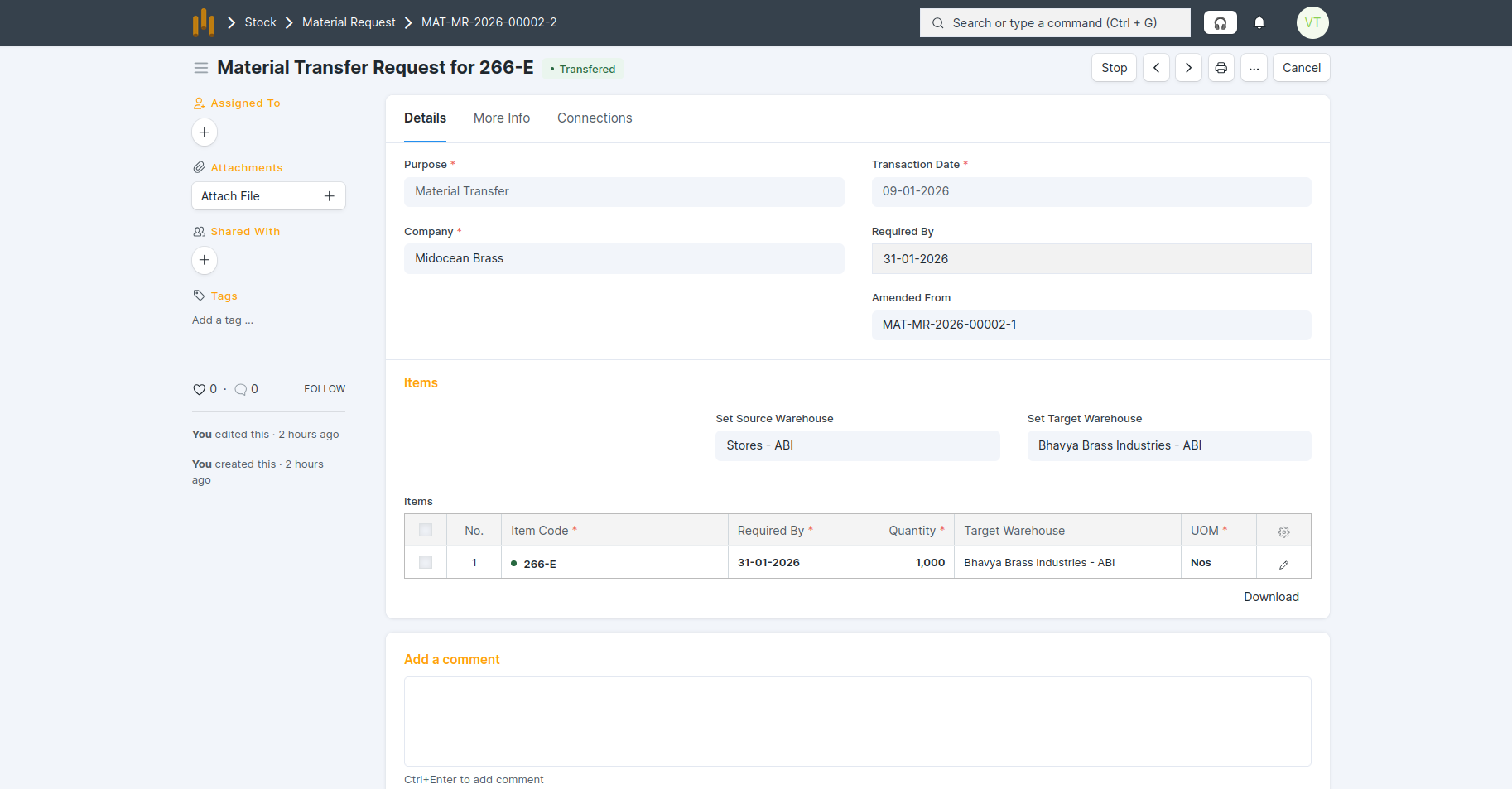
- Also, Material Request status is updated to Transfered .