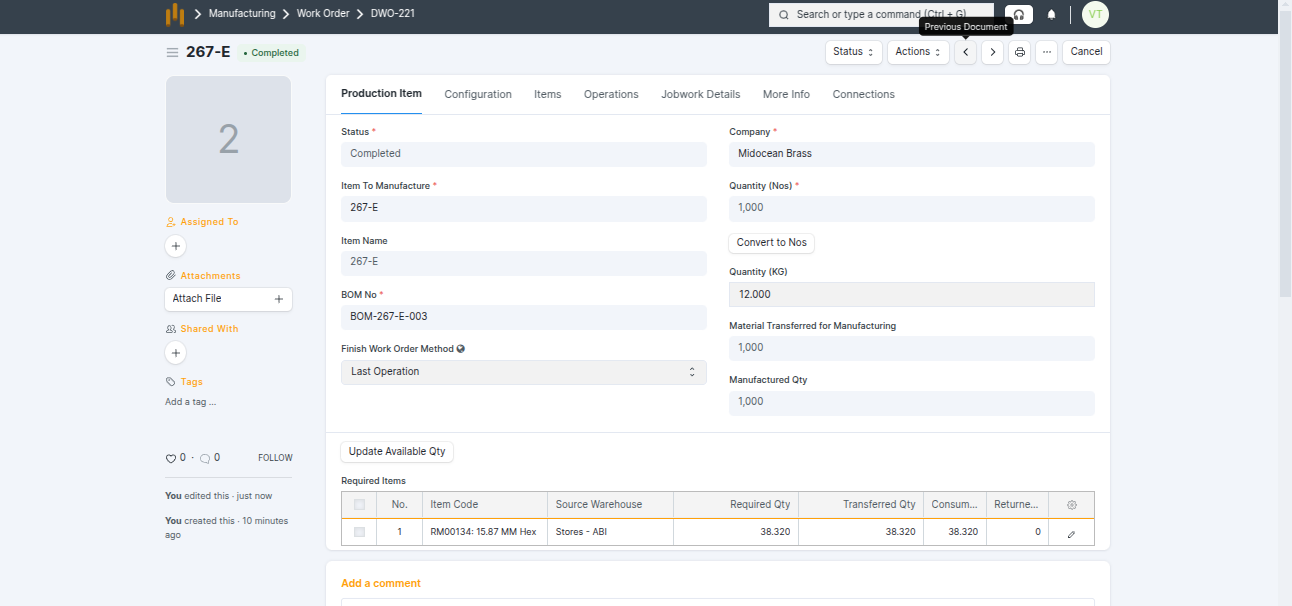
3.2.1 Job Card
- A Job Card records the actual work done during manufacturing.
- Each operation in a Work Order creates one Job Card.
- All details in the Job Card (such as Work Order No, BOM, Item, Quantity, Workstation, etc.) are fetched automatically from the Work Order.
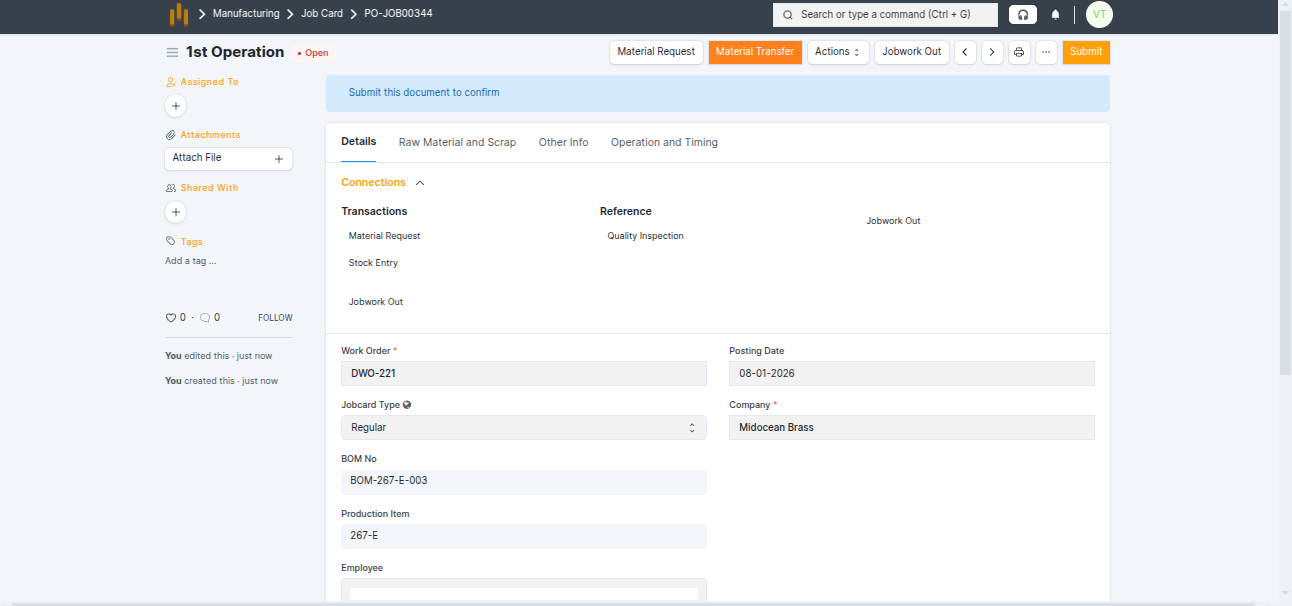
- Click Material Transfer Button.
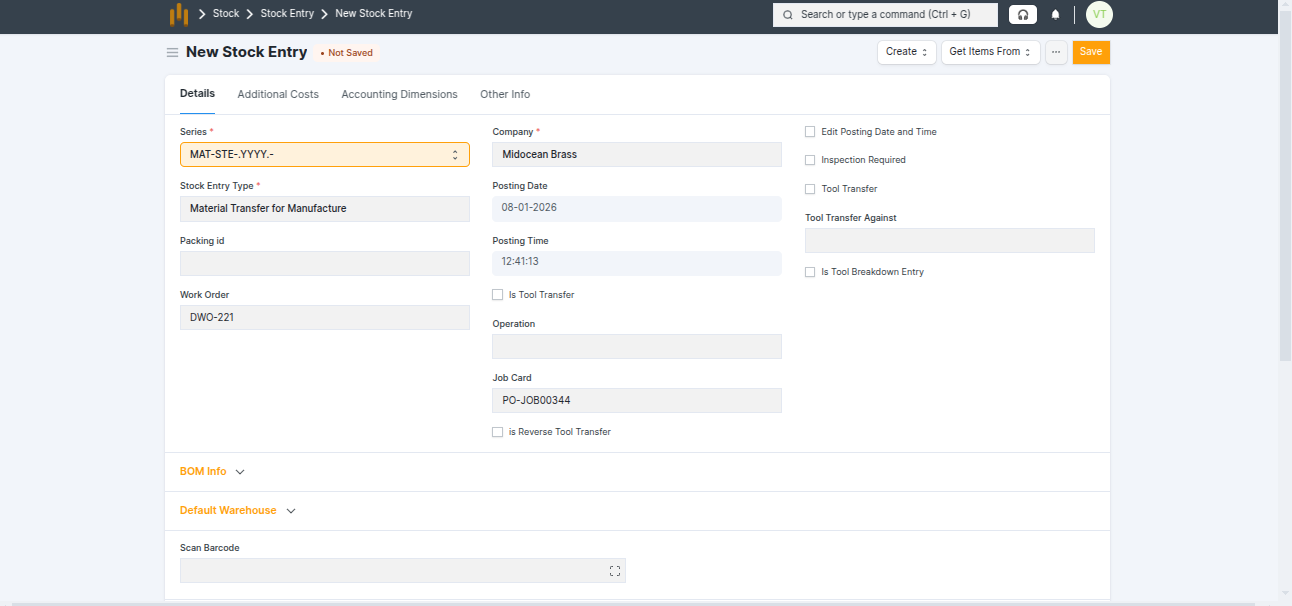
- Save and Submit the Material Transfer for Manufacture Stock Entry.
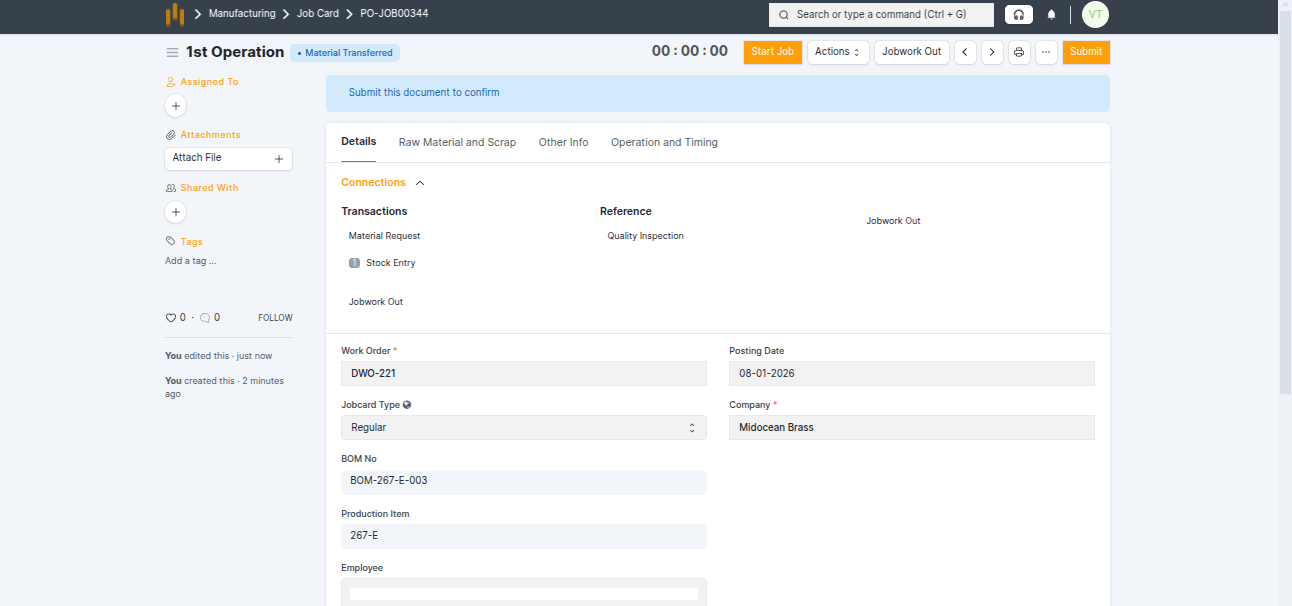
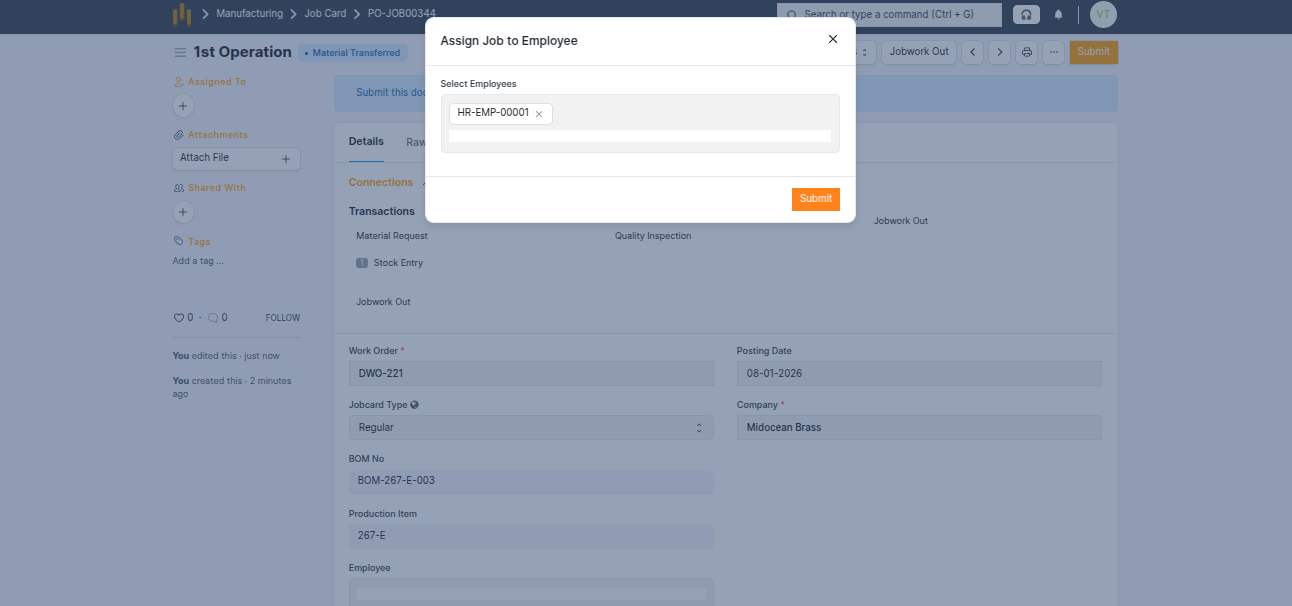
- The Job Card status is updated to Material Transferred. Click the Start Job button.
- Select the Employee and click Submit .
- Now the time starts calculating. Click the Complete Job button
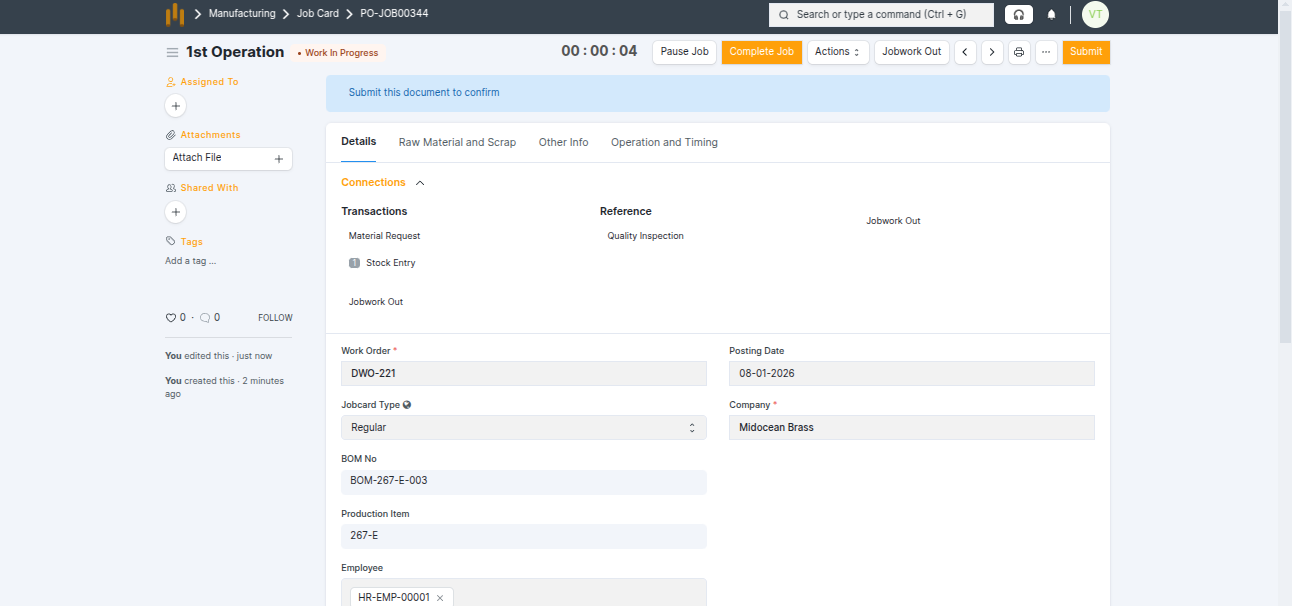
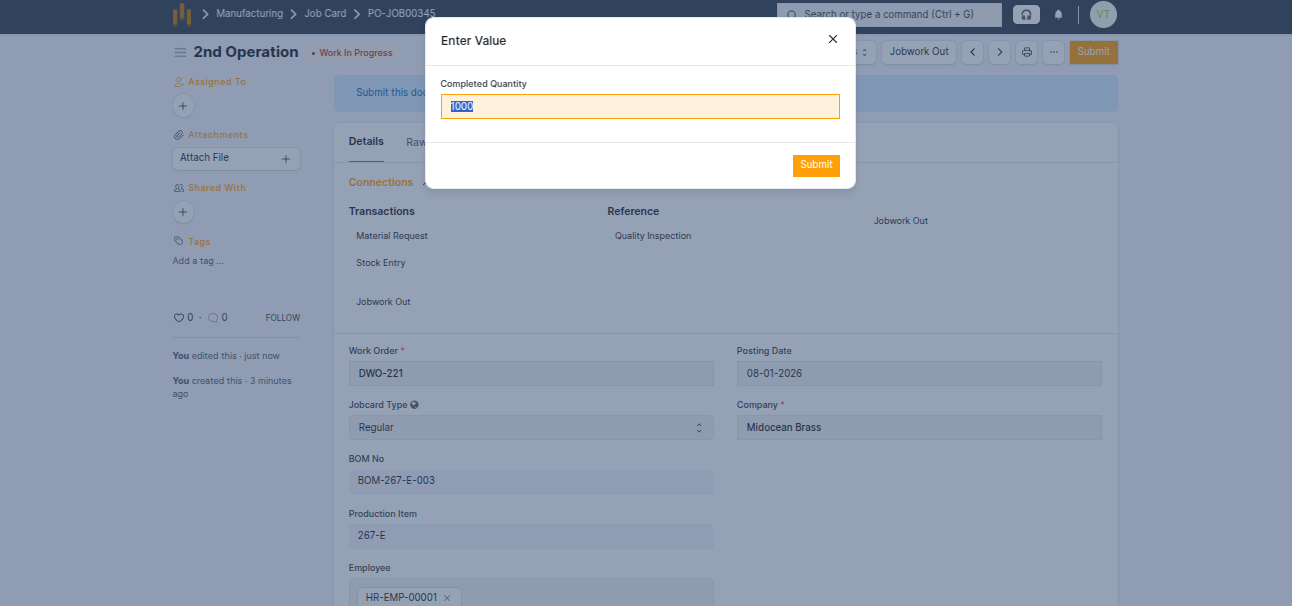
- Submit the button
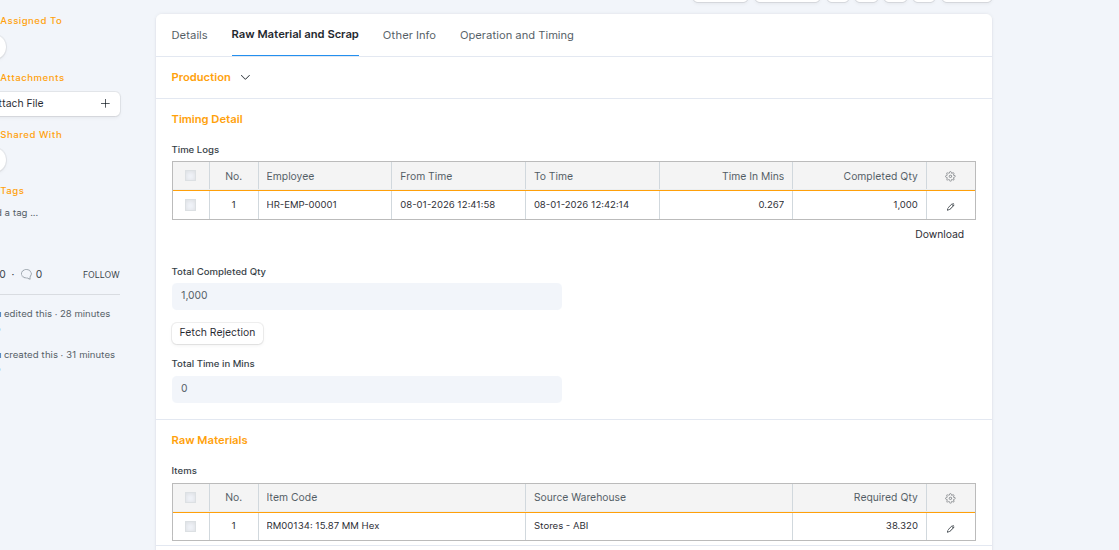
- All details are now stored in the Time Logs table.
- Now go back to the Job Card and submit the first operation and other operations.
- Click the Create QC button to create a Quality Inspection. It is created in Draft status.
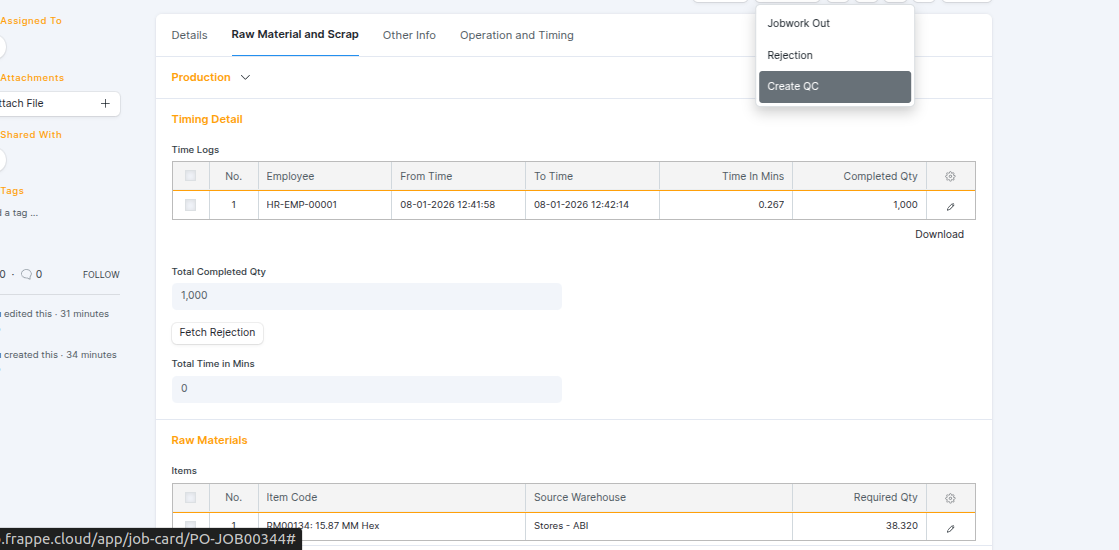
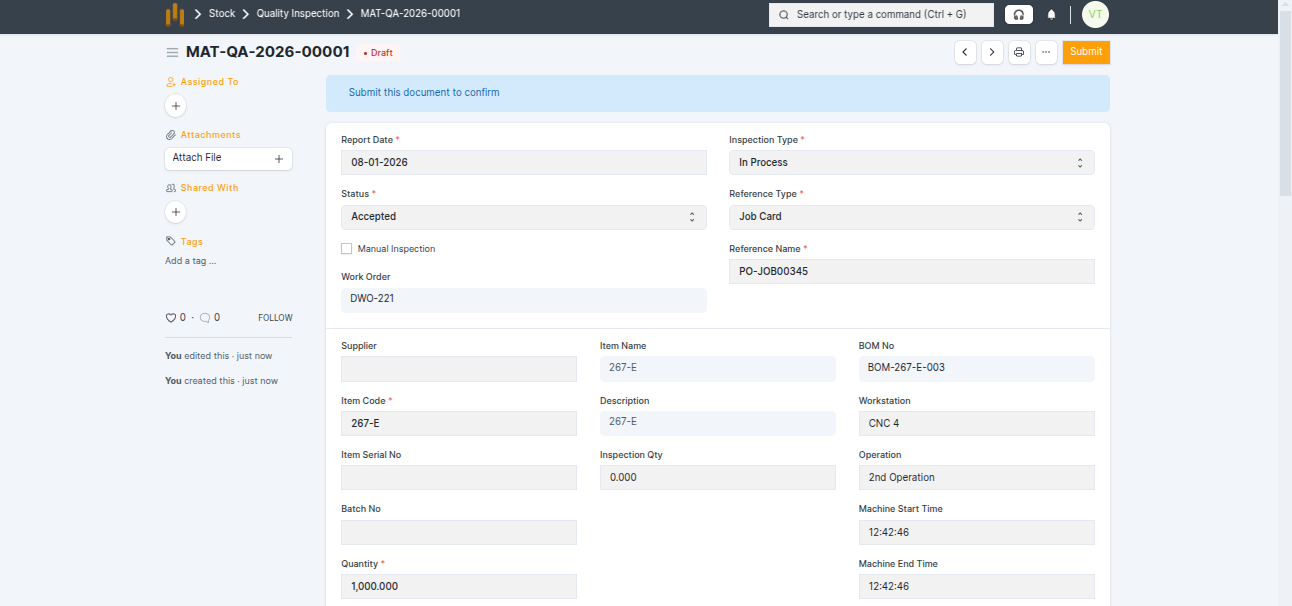
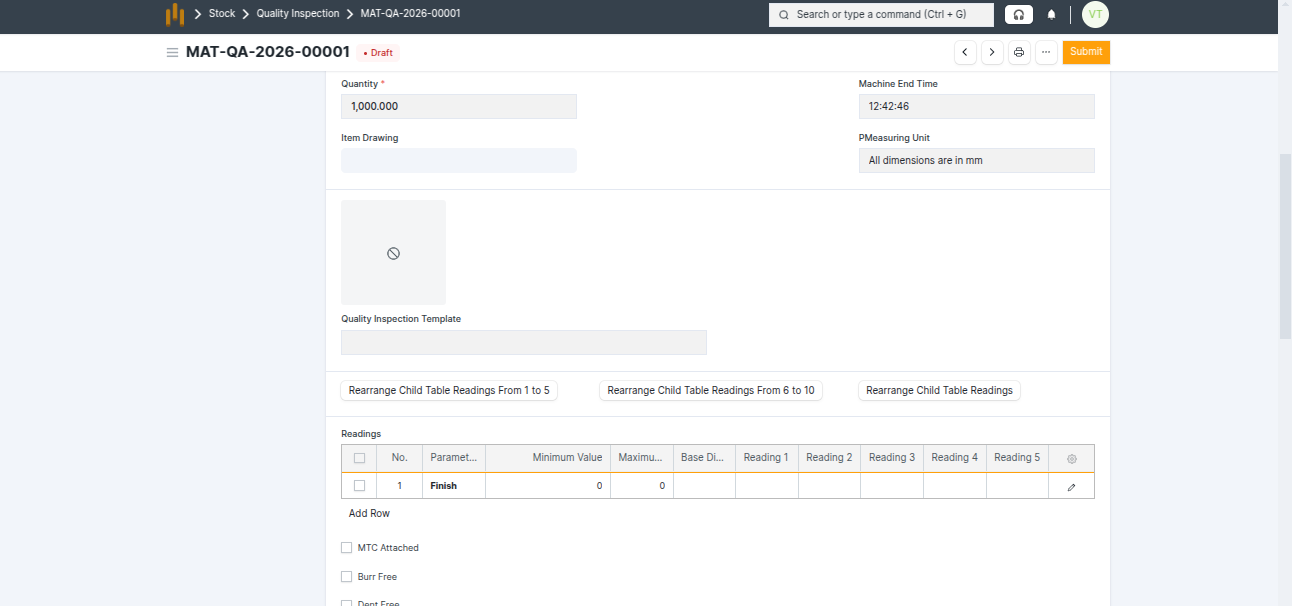
- An In-Process Quality Inspection is created. All details are fetched automatically, including Item, BOM, Date, Job Card No, Work Order No, Quantity, Workstation, Operation, and the Quality Inspection Template.
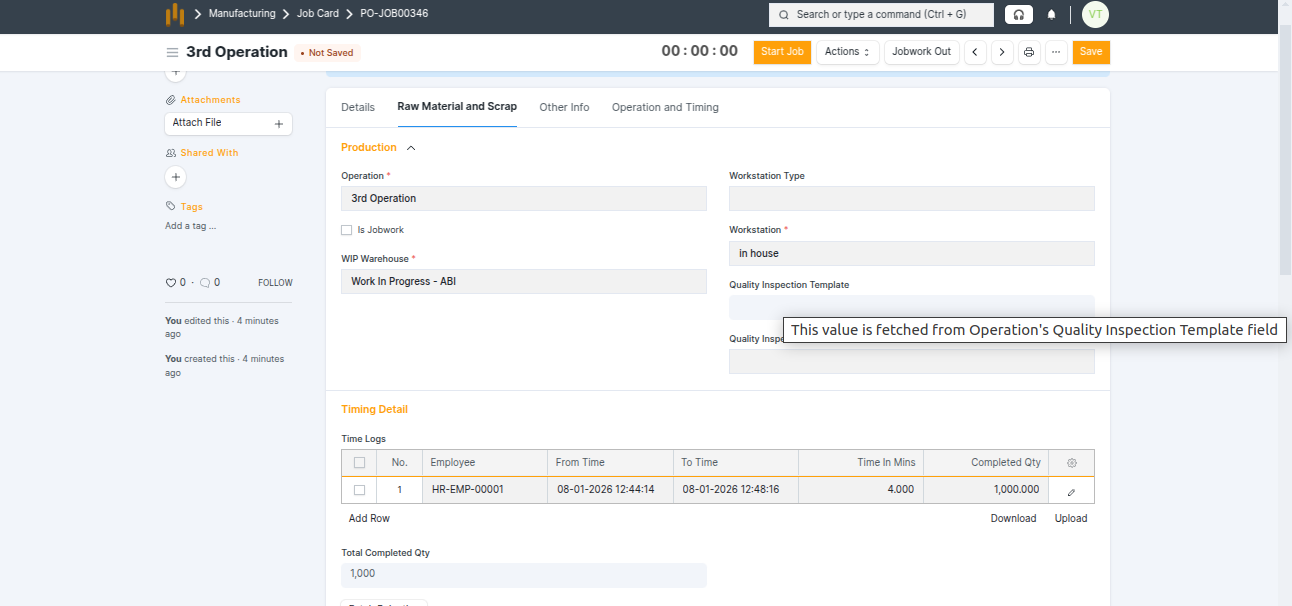
- If you do not want to use Start Job and Complete Job, you can manually add all details in the Time Logs table, then Save and Submit the Job Card .
- Go back to the Work Order. The status is updated from Not Started to In Process. Click the Finish button to create the Manufacture Stock Entry .
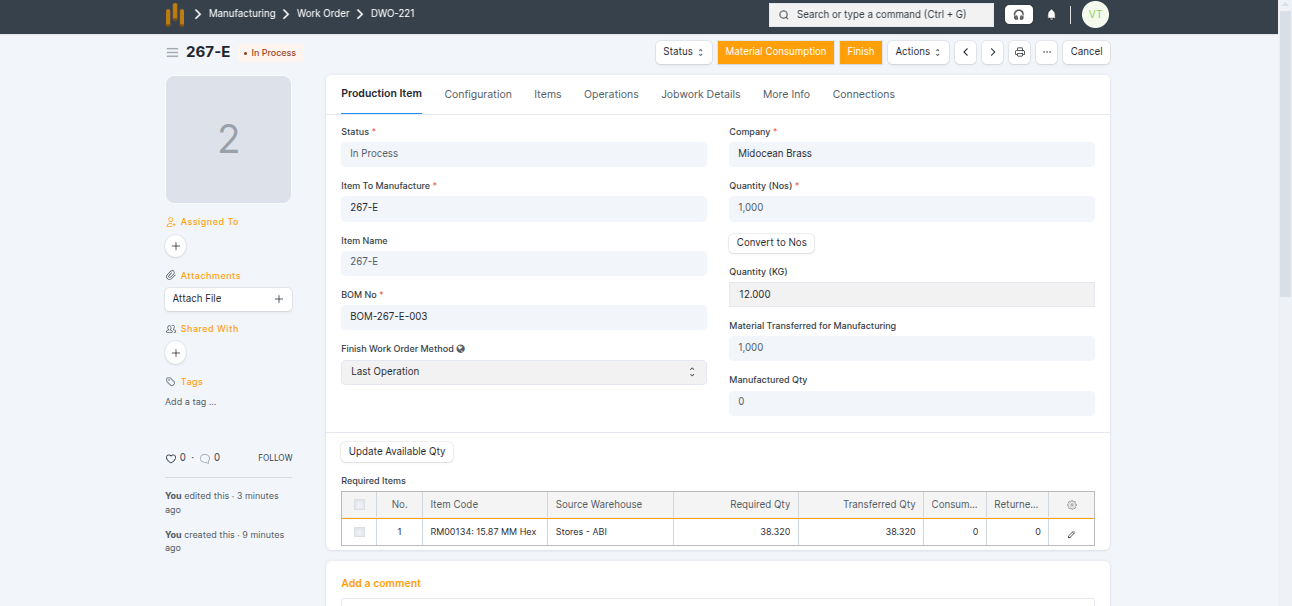
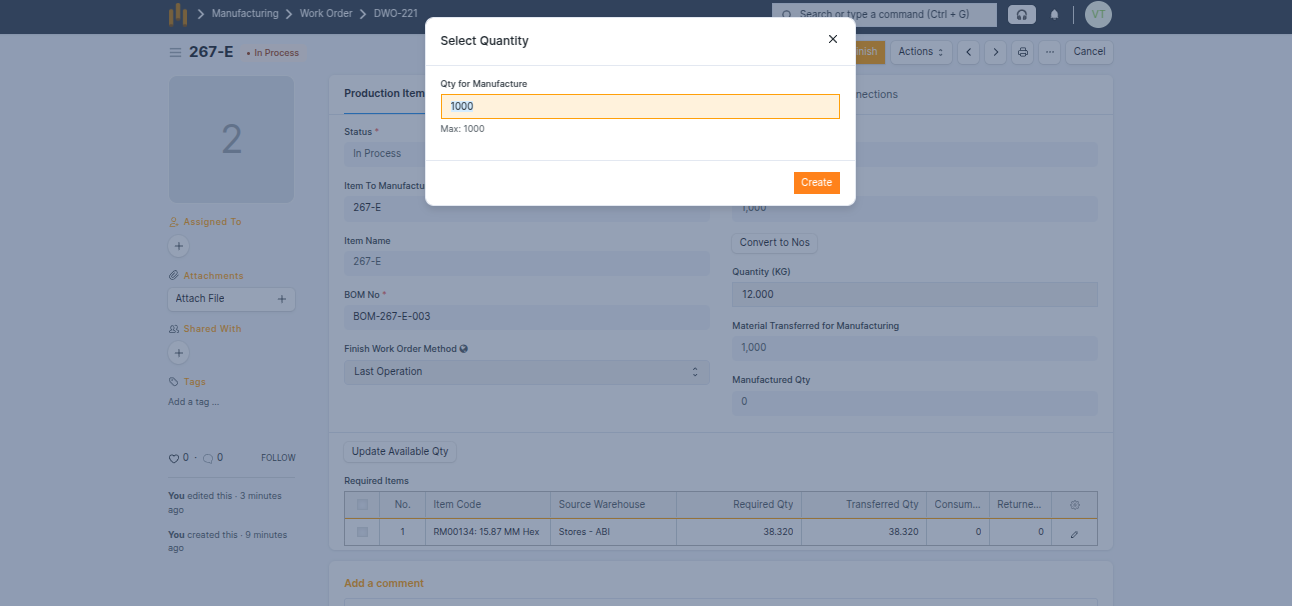
- Click Create Button to create the Manufacture Stock Entry .
- The Manufacture Stock Entry is created.
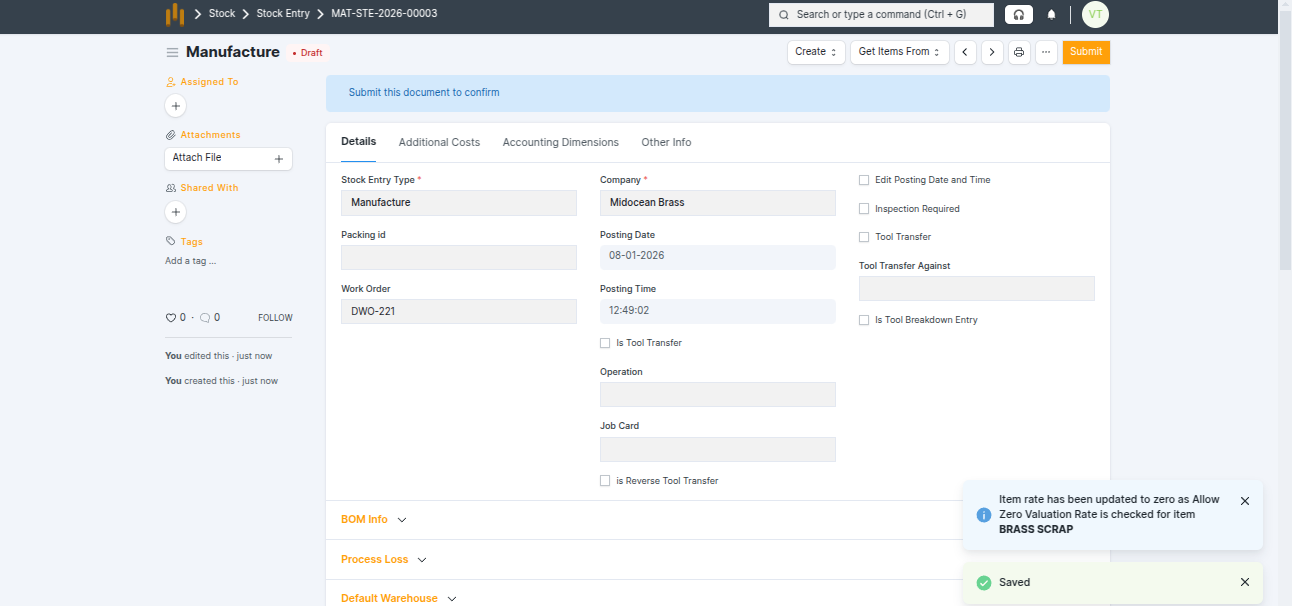
15.Save and Submit the Stock Entry.
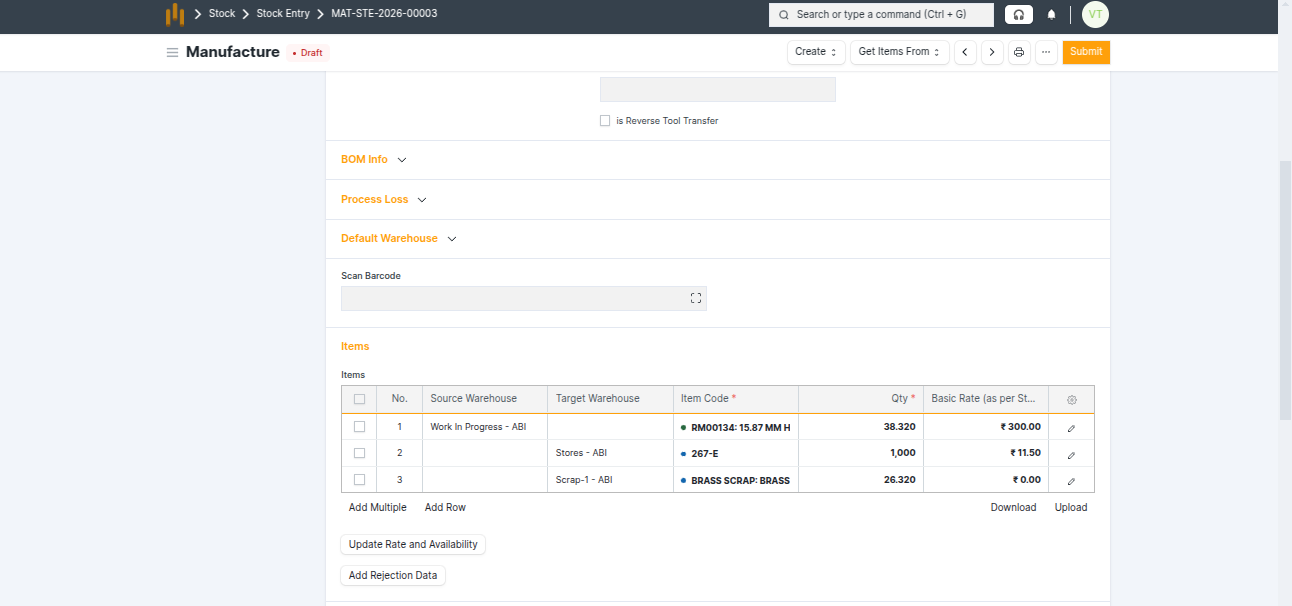
- The Work Order status is updated from In Process to Completed.