Logging In and First-Time Setup
1. The Login Experience
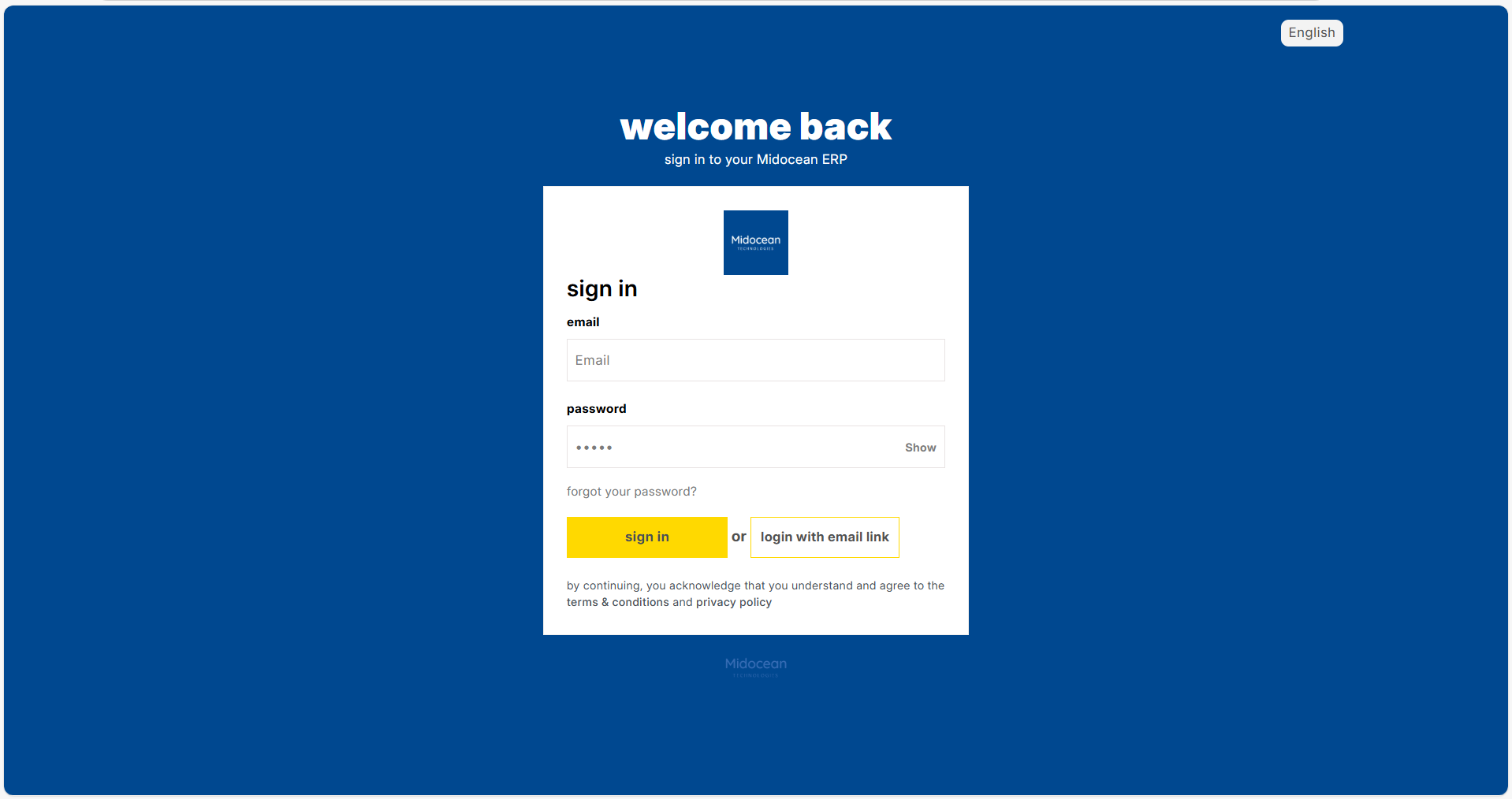
The Midocean ERP login page is designed for quick and secure access.
Login Methods
- Standard Login: Enter your registered email and password.
- Magic Link: Click "Login with Email Link" to receive a temporary access link in your inbox. This is useful if you forget your password.
Language Selection
You can toggle between English and Arabic directly from the login screen.
Note: Switching the language will automatically flip the layout (Left-to-Right or Right-to-Left) for the best reading experience.
2. The Onboarding Wizard
For new companies, the system automatically launches a 5-Step Onboarding Wizard upon the first login. You cannot access the main menu until these steps are completed.
Step-by-Step Guide
View Chart of Accounts
- Description: Your chart of accounts is the foundation of your financial system. Review the pre-configured lists and select the one that matches your business needs.
- Action: Click "View chart of accounts".
Set Your Fiscal Year
- Description: Define the 12-month period for financial reporting and tax purposes. This setting affects report generation, budgeting, and compliance.
- Action: Click "Set your fiscal year".
Add Your Company Logo (Optional)
- Description: Upload your company logo to personalize invoices, reports, and documents.
- Action: Click "Upload logo".
Email Configuration (Optional)
- Description: Connect your email account to enable automated notifications, send invoices directly to customers, and receive system alerts. Supports Gmail, Outlook, Exchange, and custom SMTP.
- Action: Click "Configure your email".
Add User (Optional)
- Description: Invite team members to access your Midocean ERP system. Set up user accounts with role-based permissions (e.g., Sales User, Accounts Manager).
- Action: Click "Add user".
Progress Tracker: A widget in the bottom corner shows your progress (e.g., "3/5 Completed").