Dashboard & Navigation
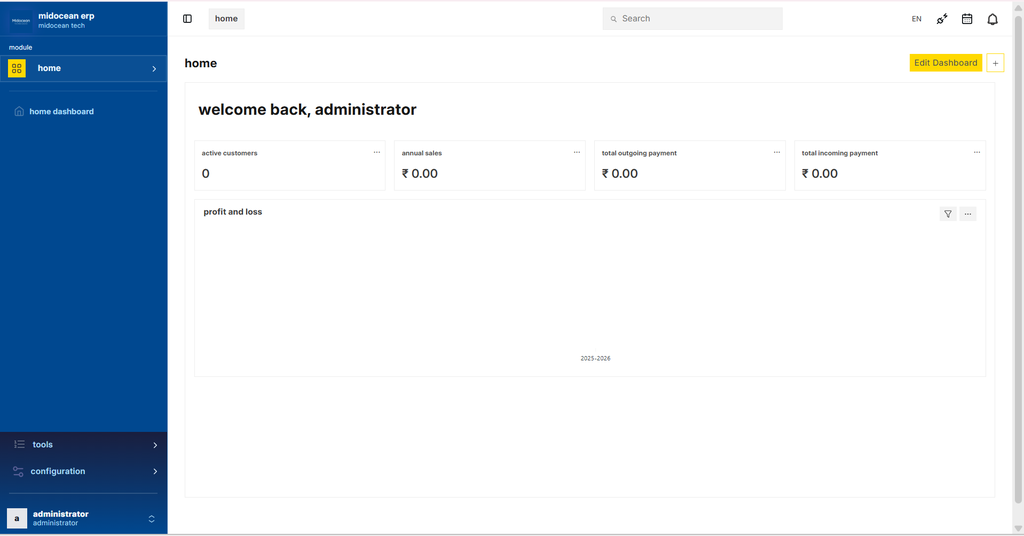
Once logged in, you will land on the Midocean Dashboard. This interface is designed for clarity and speed.
1. The Rail Sidebar
The vertical bar on the left (or right in Arabic) is your primary navigation tool.
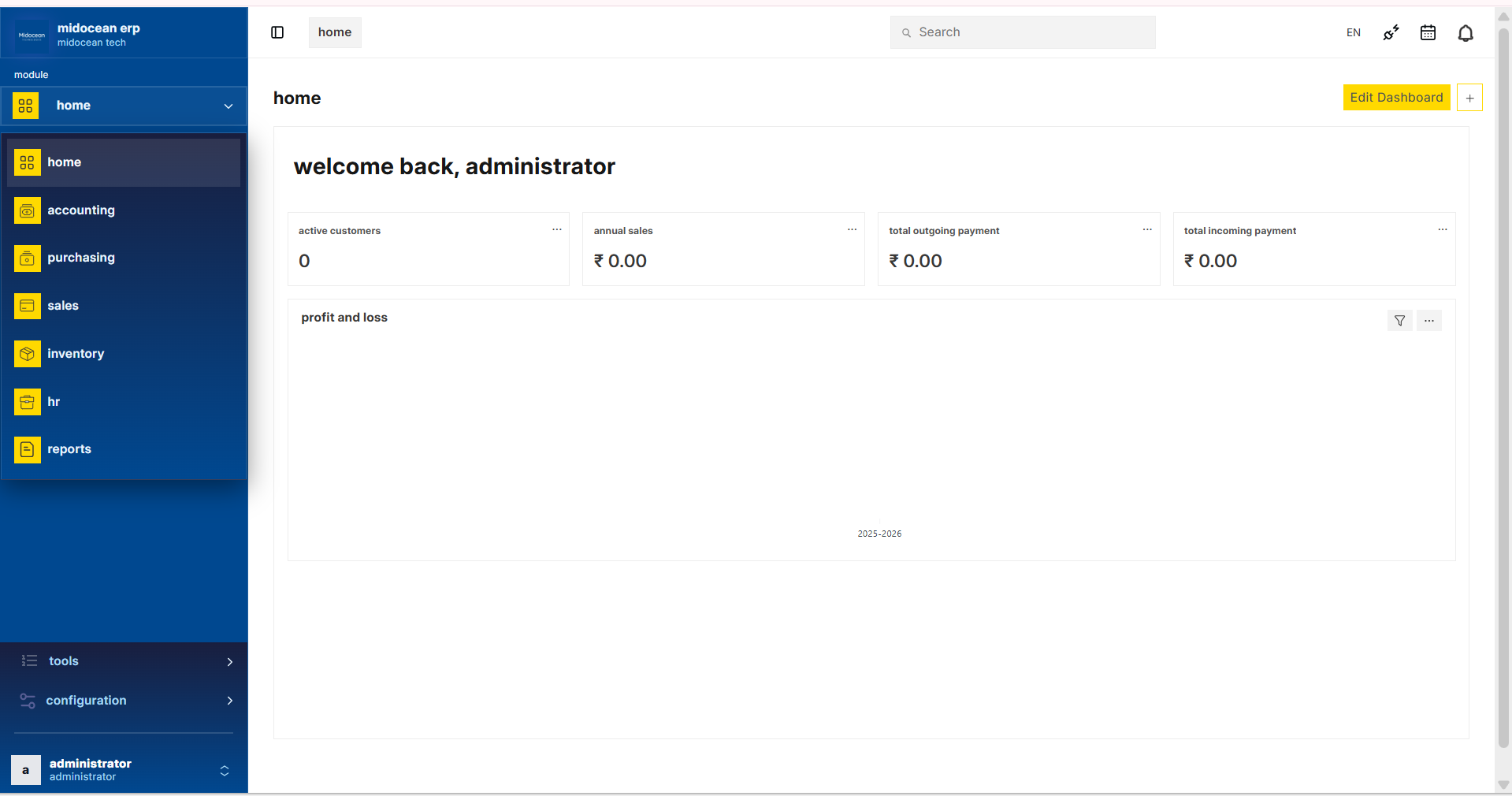
- Brand Home: The top logo acts as a "Home" button. Click it anytime to reset your view.
- Module Switcher: The dropdown arrow lets you switch between different business areas (e.g., Sales, Buying, Accounts).
- Quick Icons: Below the switcher, you will find icons for your most-used modules.
2. The Top Bar
The horizontal bar at the top manages global actions.
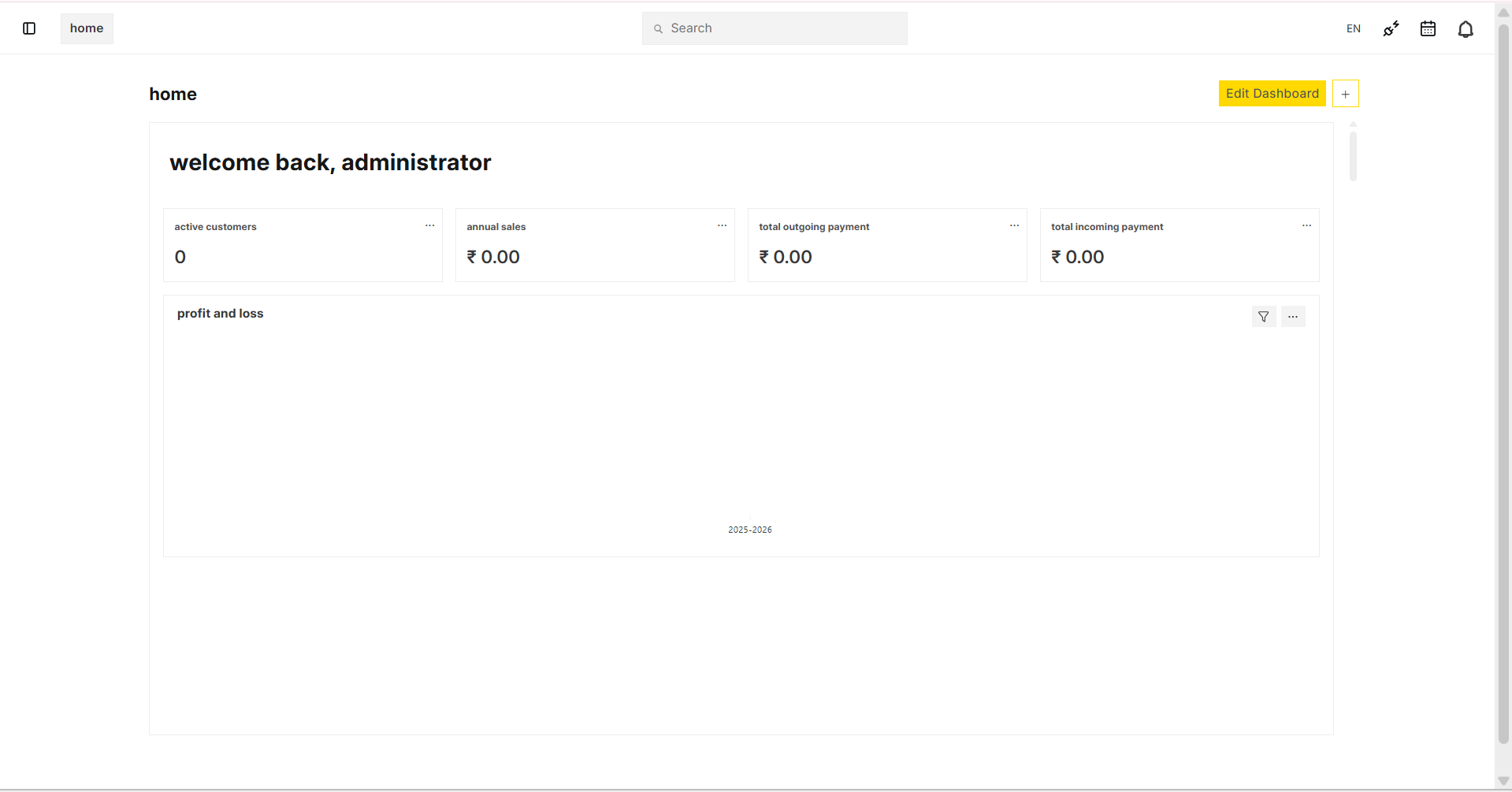
- Breadcrumbs: Shows your current location path (e.g.,
Home > CRM > Lead). - Global Search: The center bar allows you to find any document or report instantly.
- Shortcut: Press
Ctrl + G. - User Menu: The avatar in the top corner gives access to your Profile, Settings, and Logout options.
3. The Workspace
The main central area displays your actionable data.
- Metrics: Key performance indicators (KPIs) like "Total Sales" or "Pending Tasks".
- Shortcuts: One-click buttons to create new records (e.g., "New Invoice").
- Charts: Visual graphs to track trends over time.
4. Key Settings Screens
These screens control global behavior and branding across the system.
System Settings
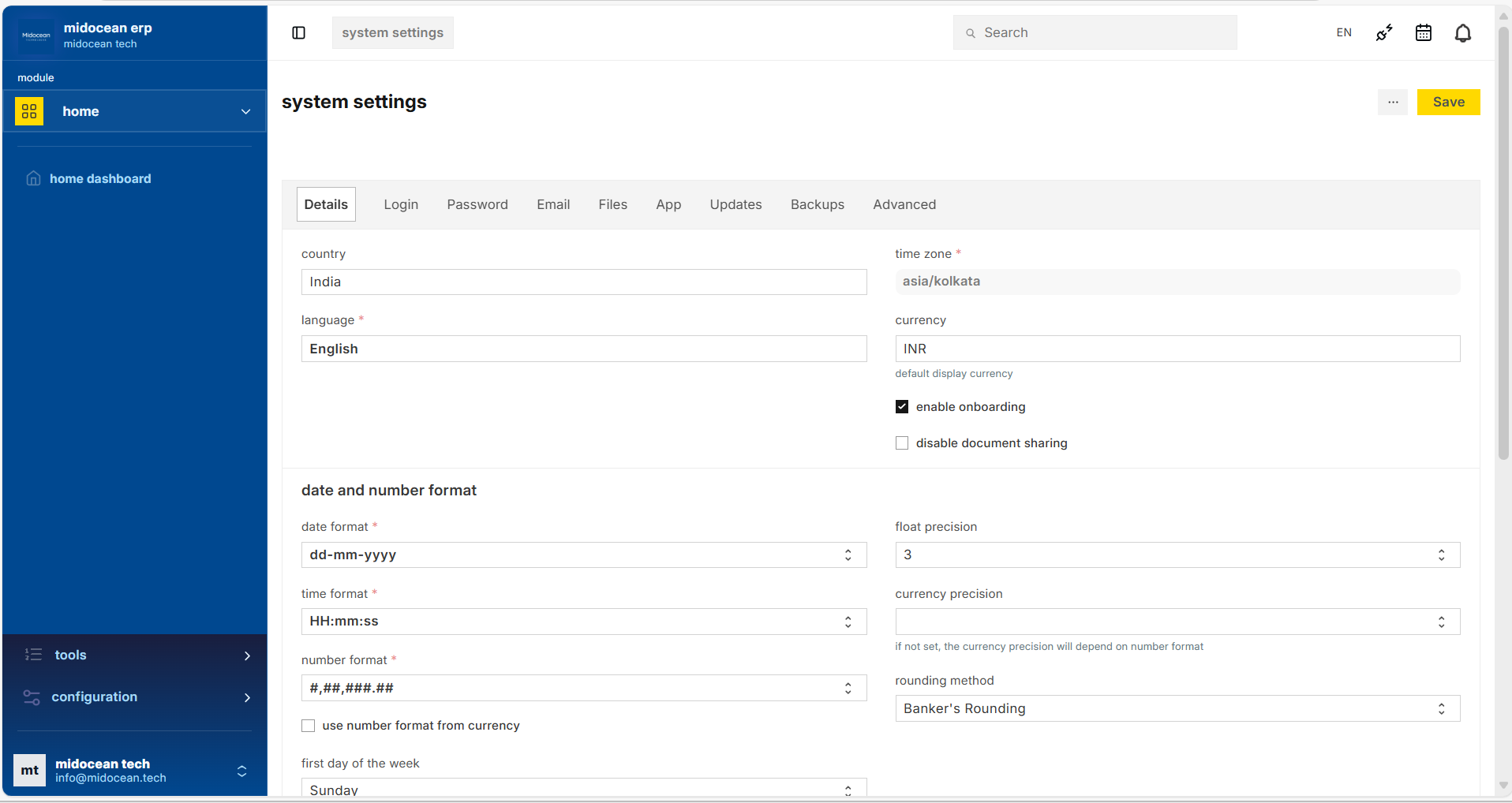
- Country, Language, Time Zone, Currency
- Date/Number formats and rounding method
- Onboarding enable/disable and permissions
Website Settings
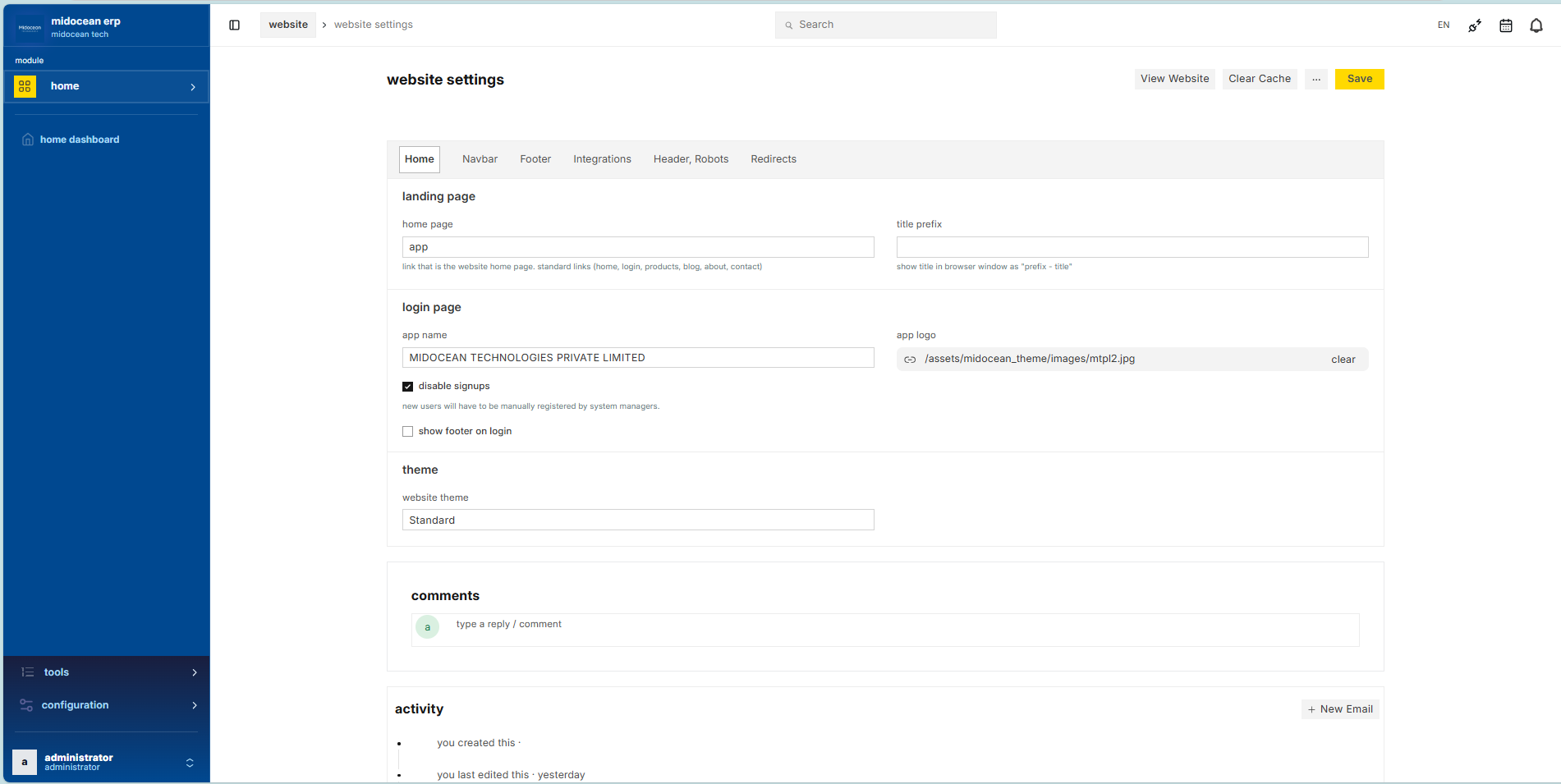
- Banner Image and Splash Image
- App Logo and Favicon
- Footer branding consistency
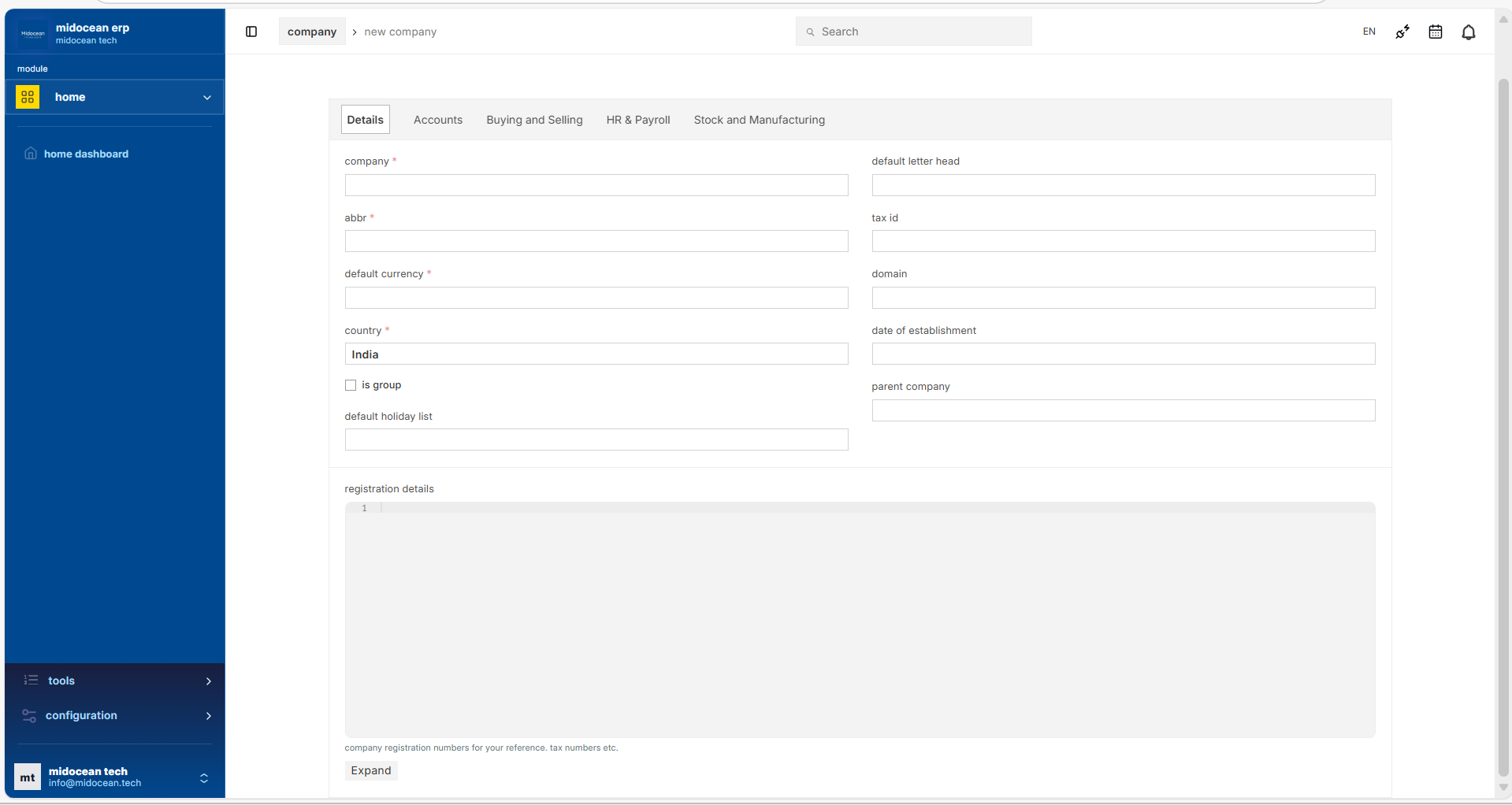
Company
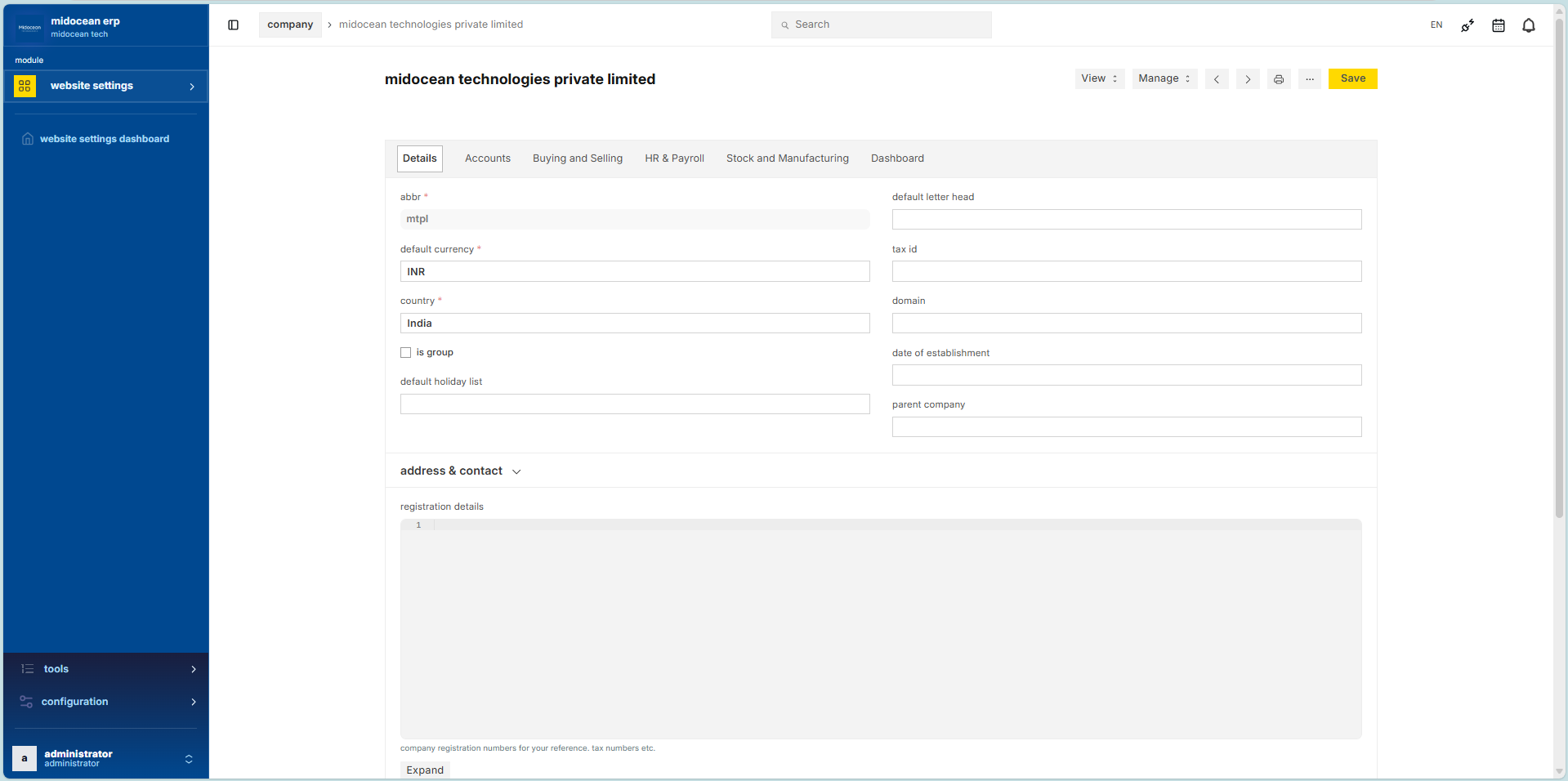
- Company name and abbreviation
- Default currency and country
- Letter head, tax ID, and registration details